Open in
Changing a player's retirement date
Open the retiring player's Retire Date page. It appears when a retirement record is available.
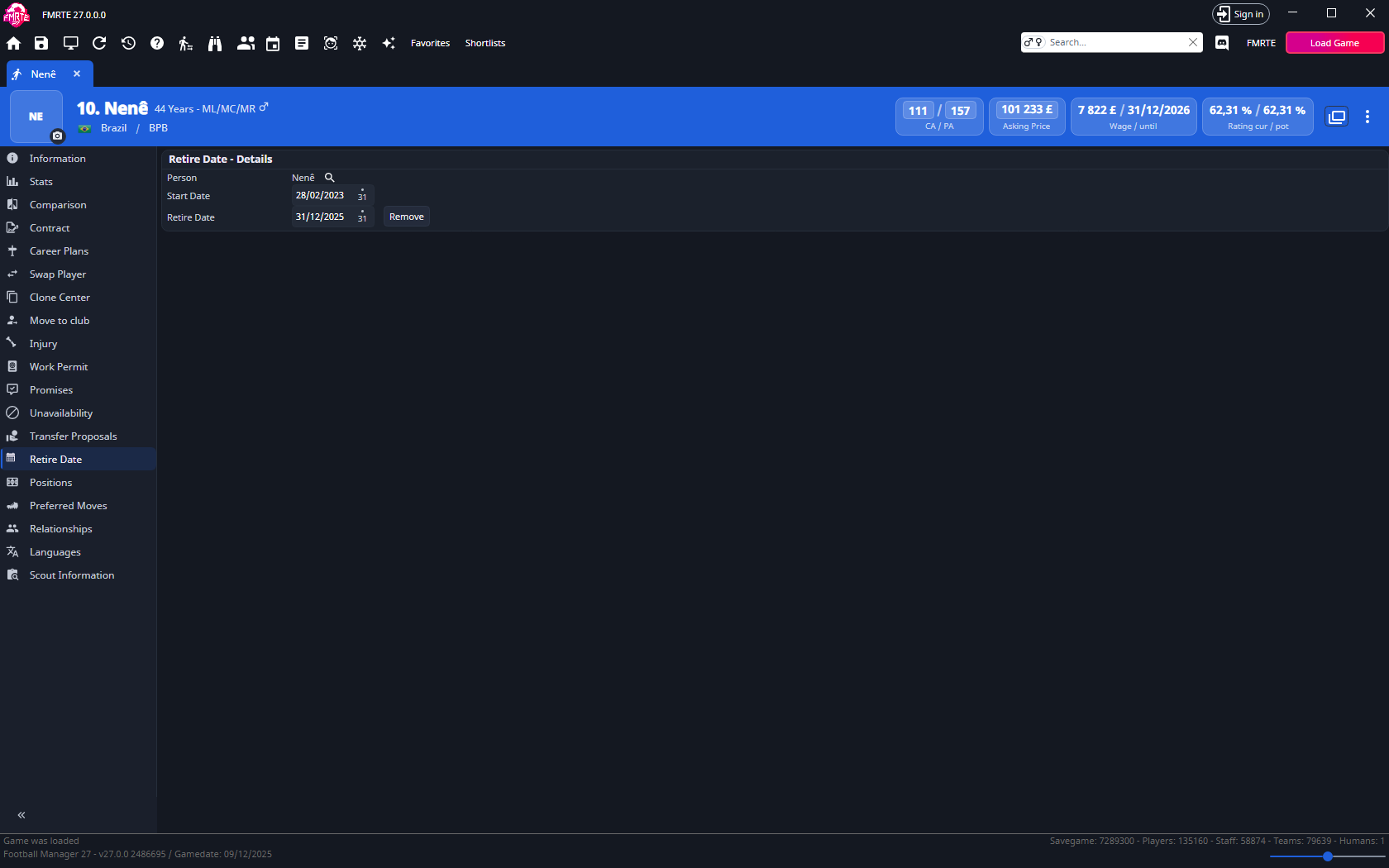
Change the date
- Open Retire Date and check Person in Retire Date - Details.
- Set Retire Date to the new date. Leave Start Date unchanged unless you also intend to change it.
- Select Save Changes.
- Check the player's retirement information in Football Manager, it may refresh after the game advances.
Remove the retirement record
Select Remove, save, then reload the player and check their retirement status in Football Manager.
See all planned retirements
Select View Players Retirements on the toolbar (the calendar icon). A Retire Date tab opens with every player and staff member who has a retirement date in the loaded save. If no game is loaded, FMRTE shows a message instead.
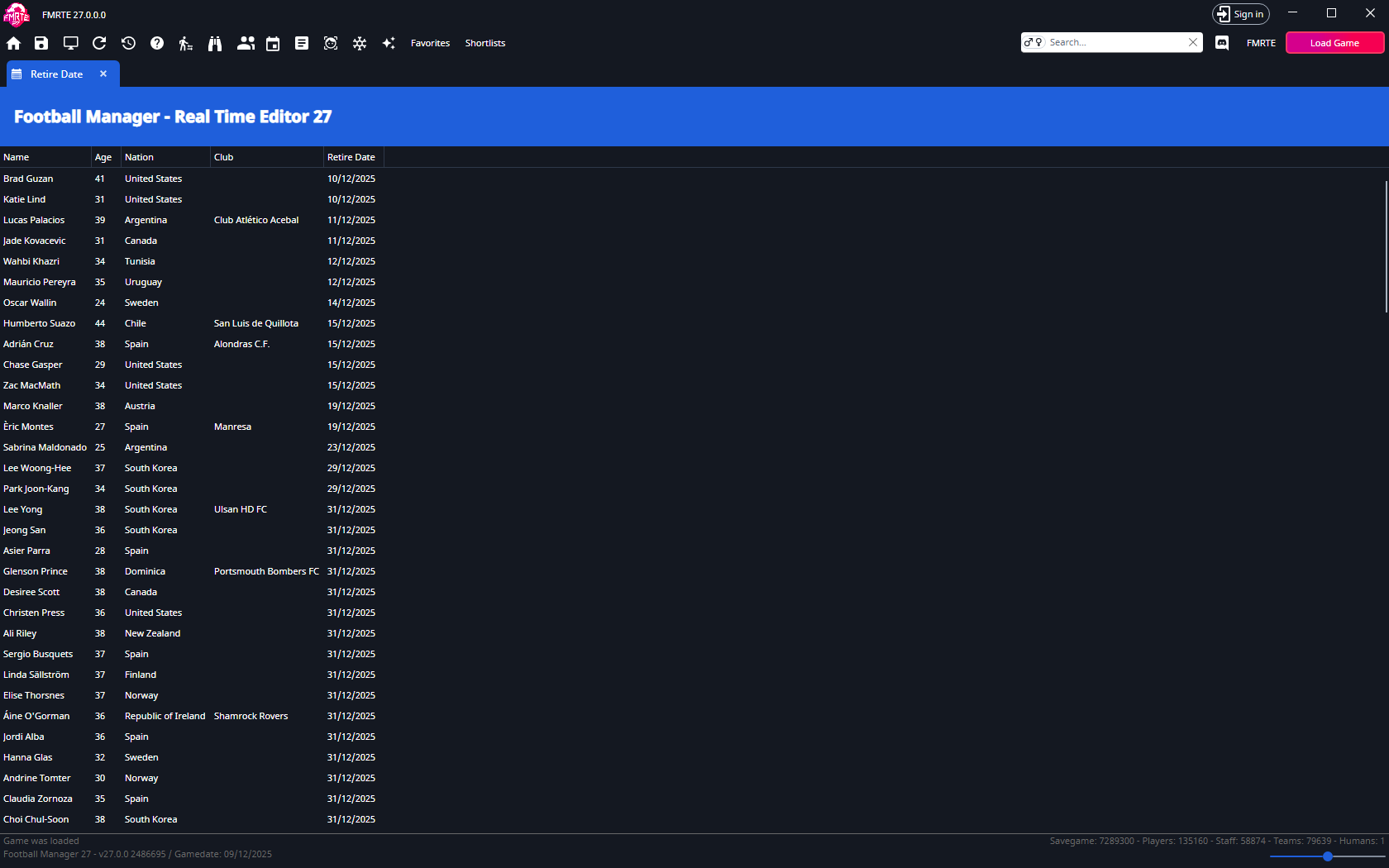
By default the list shows these columns:
| Column | Shows |
|---|---|
| Name | The retiring player or staff member |
| Age | Their current age |
| Nation | Their nation |
| Club | Their current club |
| Retire Date | The planned retirement date |
Select a header to sort, for example by Retire Date to see the next retirements first. To show other fields, see Choose columns and their order.
The list itself is read-only. To change or remove a retirement:
- Double-click the person's row. Their profile opens in a new tab.
- Open Retire Date and change the date or remove the record.
Right-click one or more rows for the same person actions as other player lists, such as Add to favourites, shortlists, presets and the Freezer.
If the tab is missing
After a new retirement announcement, select Load Game again. You may need to advance Football Manager before the record becomes available.
A player becoming staff may not have a staff profile until playing retirement takes effect. Changing their retirement date does not create that profile early.