Open in
Editing coaches and staff
Search for the staff member and open Information to edit their attributes.
Staff tabs at a glance
| Tab | What you'll find |
|---|---|
| Information | Personal details and staff attributes. |
| Contract | Existing club and national-team contracts. |
| Career Plans | Career preferences, jobs and the conditions attached to them. |
| Promises | Promises a manager made to players. |
| Swap Staff | Swaps between eligible club or national-team jobs. |
| Training Rating | Coaching star ratings for different training areas. |
| Formations/Tendencies | Preferred formations and staff tendencies. |
| Relationships | Relationships with people, teams and nations. |
| Knowledge | Country knowledge entries and their values. |
| Retire Date | An existing scheduled retirement. |
| Languages | Spoken languages and proficiency. |
Contract appears when the person has a club or national-team contract. Retire Date appears when they have a scheduled retirement.
A player-coach opens as a player. Select Staff on the player page for their Information, Training Rating, Formations/Tendencies and Knowledge. Their contract, career plans, promises, relationships, retirement and languages are on the player tabs, and Swap Staff is not offered.
For your own manager's options, see Manager profile.
Staff Languages and Relationships use the same tabs as players. See Languages and Relationships.
Edit an attribute
Staff attributes use 1–20. Groups include coaching, roles, tactical, non-tactical, mental, personality, scouting and chairman attributes. Personality Controversy and chairman Interference are coloured in reverse, so a low value shows as good.
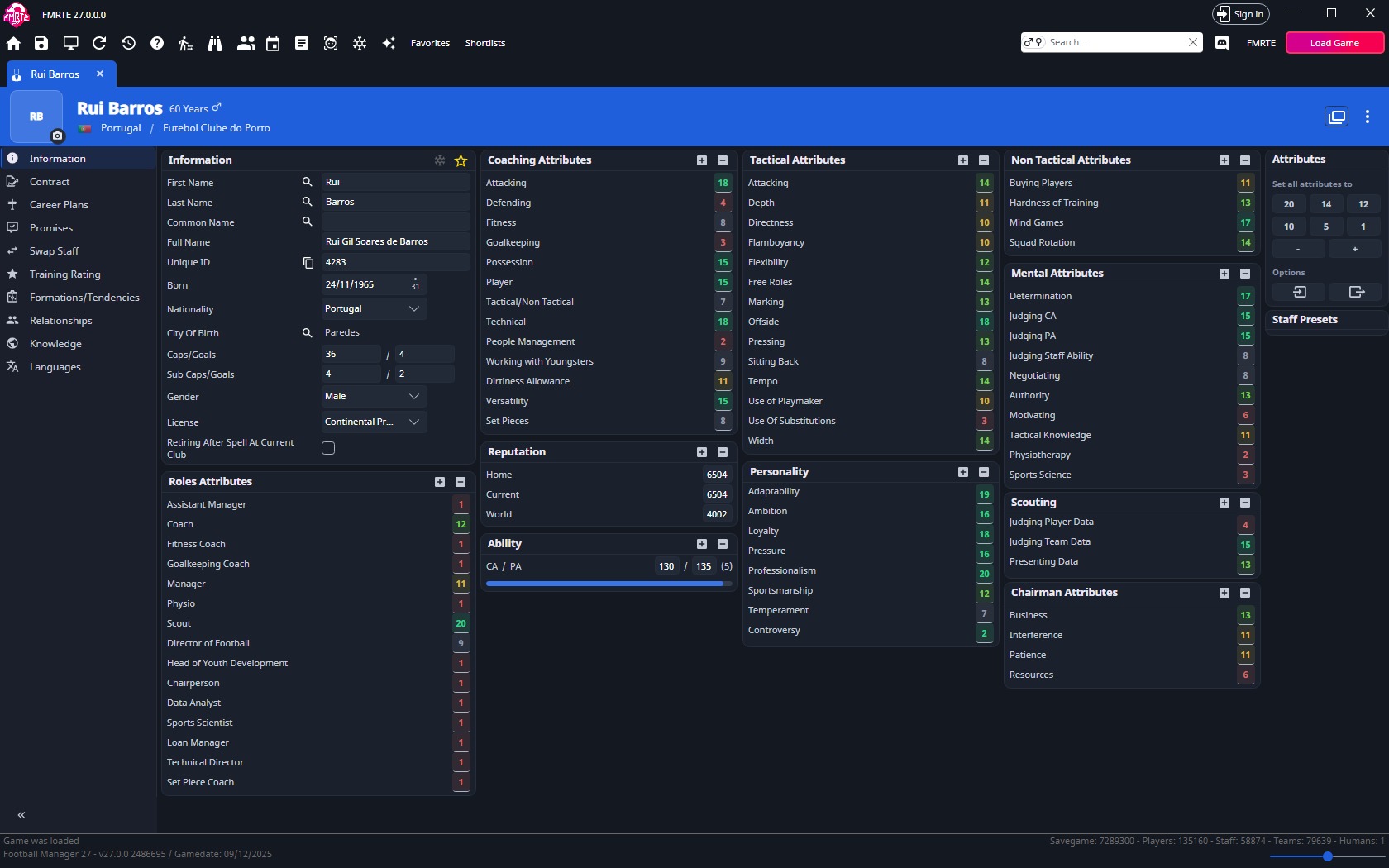
Worked example: improve Working With Youngsters
- Find Coaching Attributes → Working With Youngsters.
- Raise it by one point, such as 12 to 13.
- Select Save Changes.
- Check the same staff member in Football Manager.
Contracts, roles and knowledge
- Contract: edit wages and dates when the page is available. Check the wage period first.
- Role attributes: change suitability, they do not assign a job. On a player, they also set the job they want after playing.
- Knowledge: edit the chosen country or region's value, then save.
- Training Rating: view or edit the coaching star ratings.
Career Plans
Open Career Plans to view the person's career preferences. Select a row to see its Options.
- Choose the Condition attached to the plan.
- Choose the Job.
- Set Item Type and use the search button to choose the related club or other entry.
- Choose Scope.
- Select Save Changes.
Use + to add a plan or - to remove the selected plan. FMRTE can add a plan only when the person already has at least one. Edit History records career plan changes but can't undo them. For a staff job swap, use Swap Staff.
A player's future job
On a player's Career Plans tab, the Long-term card above the plans holds the job the player wants once they stop playing. Football Manager shows it in the player's plans from age 29, as a sentence such as Definitely looking to do some coaching with a view to going into management once his playing days are over.
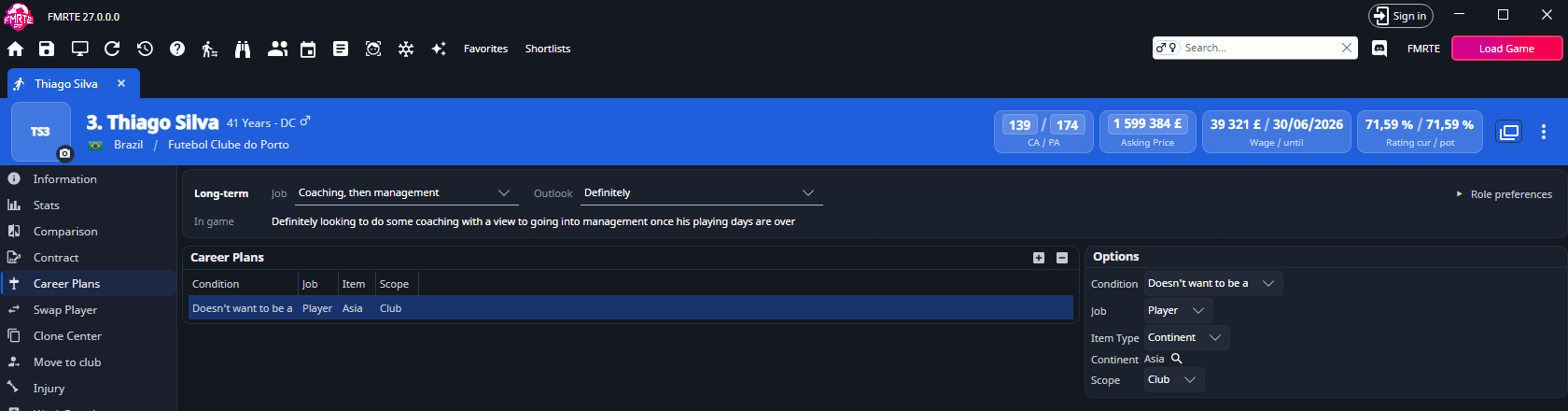
| Control | What it does |
|---|---|
| Job | The job the player wants, such as Coach, Director of Football or Coaching, then management. |
| Outlook | How keen the player is, from Definitely to Would prefer it. Not sure about staying in football, Probably not staying in football and Definitely not staying in football name no job, so Job is greyed out with them. No plans for the future clears the plan. |
| In game | The sentence Football Manager shows for the job and outlook. A player under 29 also shows Shown in game from age 29. |
Physio, Data Analyst and Sports Scientist have only two outlooks that name the job, Seriously thinking about it and Considering it. The game words them as some of the less traditional roles. The Loan Manager and Technical Director sentences are in English only for now.
To change the plan:
- Choose the Job.
- Choose the Outlook.
- Check the In game sentence.
- Select Save Changes.
Role preferences
The game works the plan out from the player's 15 staff role preferences. Select Role preferences on the card to show them. The role the plan names has a picked badge, and Coaching, then management marks both Manager and Coach.
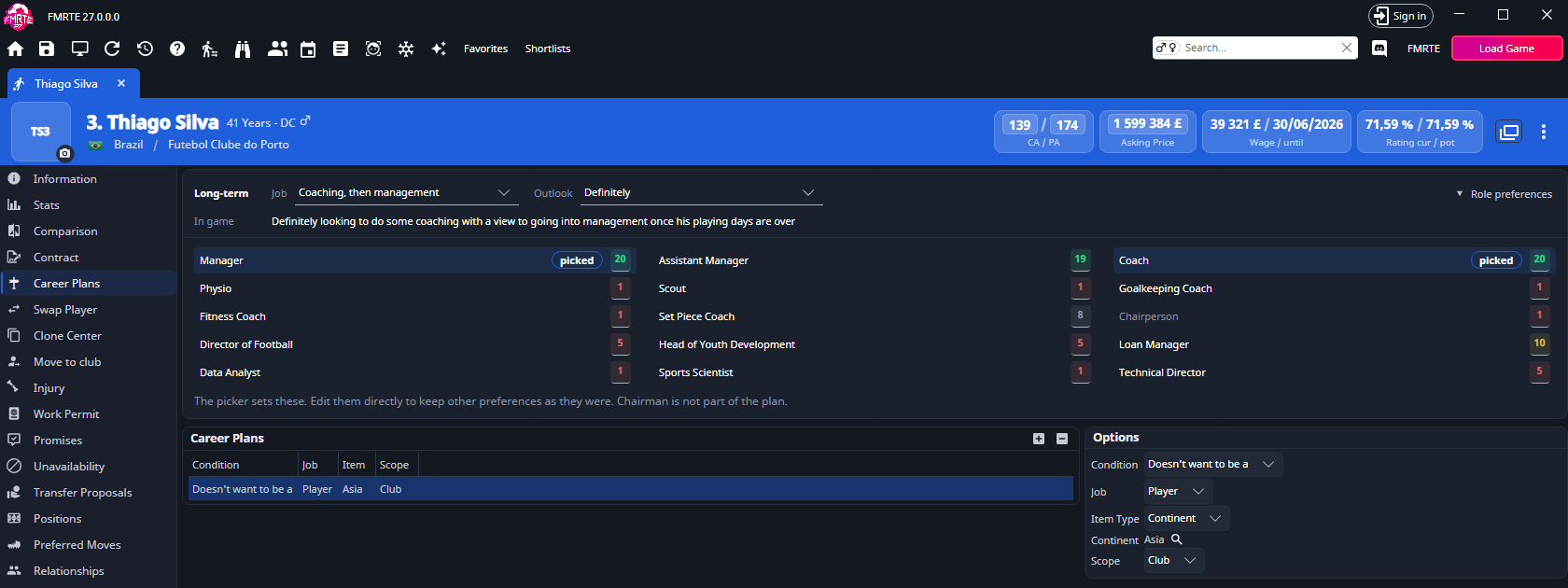
Picking a job and outlook rewrites these values so the game reads back your pick. The job gets the outlook's level, and only the roles that would beat it are lowered. To keep other preferences as they were, edit the values directly instead. Chairperson is greyed out because the game ignores it for the plan.
A player with No future-job preferences yet has no role preferences in the save. Football Manager creates them at about age 29, and FMRTE can't add them.
Changes to the plan and the role preferences can be undone in Edit History. Back up your save before you edit them, as with other career plan changes. Staff pages don't show the Long-term card.
Training Rating
Training Rating shows coaching star ratings for goalkeeping, defending, possession, attacking, fitness and set pieces. Use the separate tactical and technical ratings to compare coaching areas.
To change a rating:
- Select the stars for the training area you want to change.
- Select Save Changes.
- Reopen Training Rating to check the value.
The ratings are based on staff attributes. You can review those attributes on Information.
Formations/Tendencies
Open Formations/Tendencies to change preferred formations and the listed staff tendencies.
- Choose a formation under Preferred Formation, Second Preferred Formation, Defensive Formation or Attacking Formation.
- Set the matching Out of Possession formation if needed.
- In Tendencies, choose the row's Type and Level.
- Select Save Changes.
Knowledge
Open Knowledge to edit country knowledge. Select an existing entry and use its search button if you want to choose another country. Change Value, then select Save Changes.
Use + to add an entry or - to remove a selected entry. The country-name button opens that nation's page.
Retire Date
Open Retire Date to view the staff member's scheduled retirement. Check Person, change Retire Date, then select Save Changes.
To clear the scheduled retirement, select Remove, then Save Changes. The page also shows Start Date for the retirement record.
Right-click a staff row
Staff rows, and the ⋮ button in a staff member's header, offer Add to favourites, Copy Name to Clipboard, Copy Id to Clipboard, Shortlists, Presets..., Freeze / Unfreeze and Custom → Export NewGAN RTF. They work as described for player rows, with the same licence needs. Staff rows also have Release on a free, but no Move to actions.
Release a staff member
Release on a free removes the staff member's club contract and national team contract. It needs a licence and does not work for human managers.
- Right-click the staff member in search results, a club or nation's Staff tab or a staff shortlist. On their page, use the ⋮ button in the header instead.
- Select Release on a free.
- In Football Manager, check that the staff member no longer has a club or national team job.
Edit a full name
Open the staff member’s personal information and edit Full Name, then select Save Changes. Check the result in Football Manager. Keep the text within the field’s length limit.