Open in
FMRTE settings
Settings puts display preferences, editing tools and status information on one searchable page. Press Ctrl+, (Cmd+, on macOS), or use FMRTE → Settings. The shortcut returns to the existing Settings tab.
The navigation lists four groups, each always open: General, Editing, Tools and Support. Every page is one click away. License, Updates and Diagnostics show a coloured dot and a short status under their names, such as Not activated, Update available or No game loaded, and open with the same status at the top of the page.
Find and save a setting
Type a few words in Search settings…. Search checks names, descriptions, categories and related keywords, ignoring capitals and accents. All words must match the same result.
Edit an ordinary result directly, or select its name to open its page. Structured editors appear as page links. Search results and their normal pages share pending values, so you can change preferences on several pages before selecting Save Changes while Settings is active.
Press Esc or clear the search box to return to normal navigation. A coloured bar means a setting differs from its default. It does not necessarily mean the change is unsaved. Use a row's reset control and save to restore that preference.
Action buttons such as Activate, Check now and Open folder act immediately. Save ordinary preferences before closing Settings, then reopen it to check important changes persisted.
How to change currency
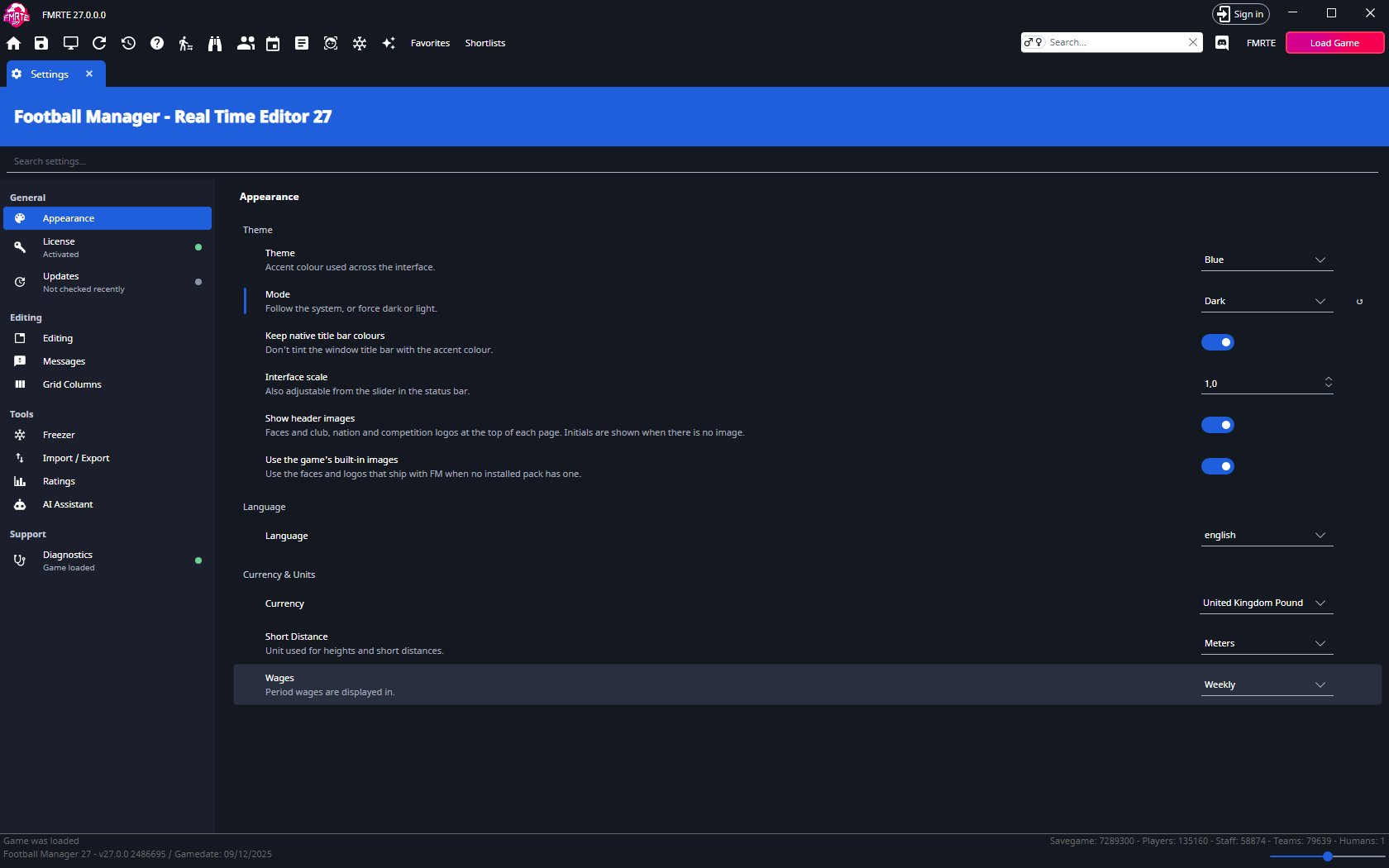
In General → Appearance, choose Theme, Mode, Interface scale, Language, Currency, Short distance and Wages, then save. Mode can follow the system or use Light/Dark. Currency and wage period change how financial values are displayed and entered, preserving the underlying amounts.
Keep native title bar colours controls title-bar tinting. Show header images and Use the game's built-in images control portraits and logos.
Theme and mode
- Theme sets the accent colour: Blue (the default) or Pink.
- Mode offers System default (the default), Dark and Light. Light mode uses a grey-blue background with white cards.
- Interface scale goes from 0.5 to 1.5 in steps of 0.1. The slider in the status bar changes the same value.
Search and tab behavior
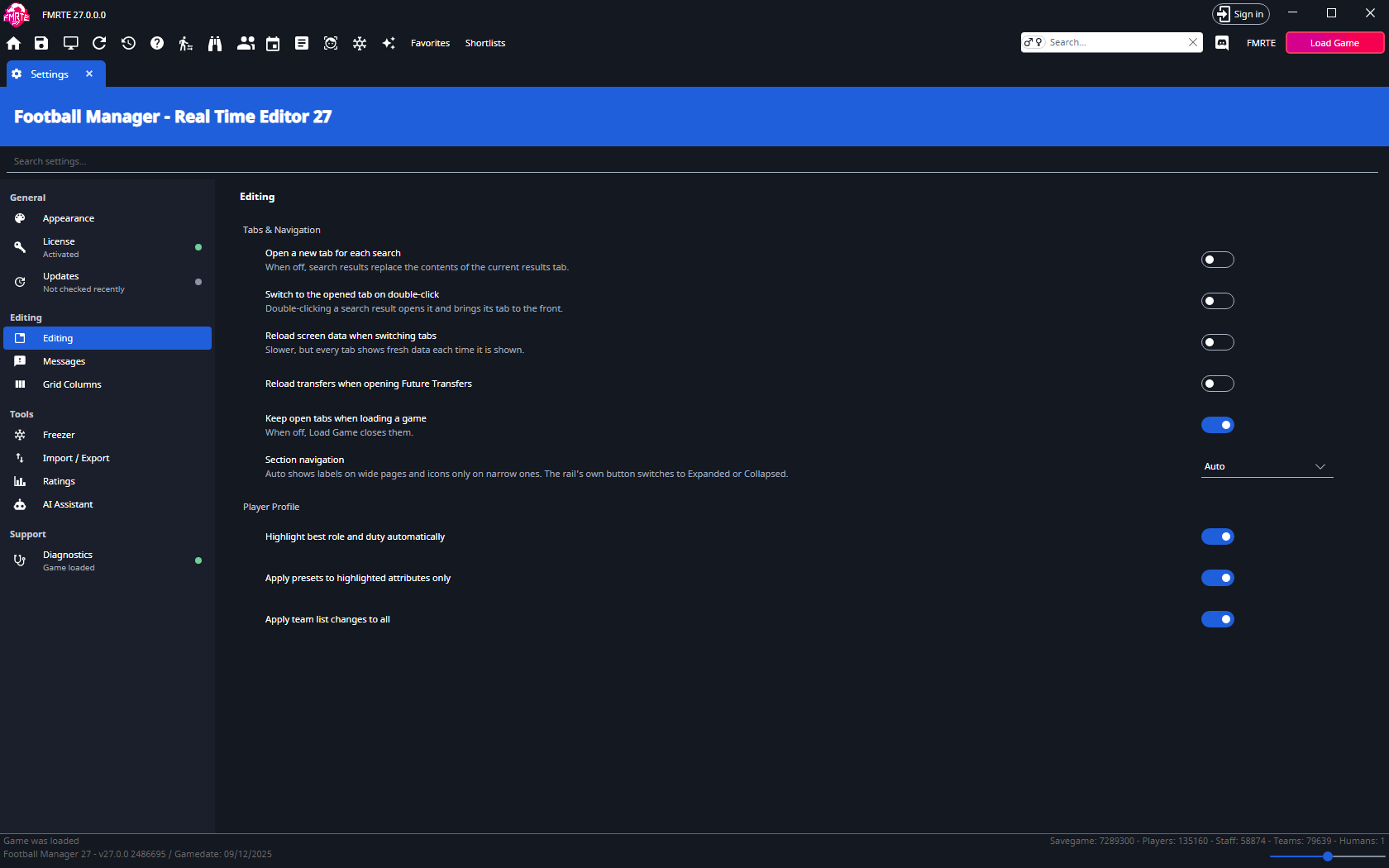
Open Editing → Editing. Under Tabs & Navigation, choose whether each search opens a new results tab, whether double-clicking switches to the opened record, and whether screen data or future transfers reload on navigation.
Section navigation offers Auto, Expanded and Collapsed. Auto shows labels on wide pages and an icon rail on narrow pages. The rail's own control also changes the shared preference.
See Quick Search for the new search panel and the interface tour for shortcuts.
Player profile settings
In Editing → Editing, under Player Profile, configure automatic best-role highlighting and whether compatible presets and group adjustments apply only to highlighted attributes. Save Settings before returning to the player.
Use the role selector to choose the attributes to highlight.
Apply team list changes to all, also under Player Profile, is the starting value of the Apply to all box on a team's player and staff lists. It is on by default. When it is on, presets, freeze, unfreeze and contract actions on those lists change everyone in the displayed team. When it is off, they change only the selected rows. Ticking or clearing Apply to all on a list also changes this setting. See Working with squads.
License and updates
General → License shows activation status, the applicable Activate or Deactivate action and Show the purchase licence message. Follow Licensing for the full procedure.
General → Updates shows the version, release channel and Check now or Install action. See Updates.
Release channel offers Stable (the default) and Beta. Beta builds arrive earlier and may be less stable. When you save a new channel, FMRTE checks for updates on that channel straight away. Moving from Beta back to Stable can offer a version older than the one installed, because the updater allows downgrades.
Messages
Editing → Messages chooses which confirmations and warnings FMRTE shows. A tick means the message appears. Each message also has a box to stop showing it, and ticking that box clears the matching setting here.
- Confirm before deleting: asks before removing a club loan, a sponsor or other income, or a nation agreement or "treated as" entry.
- Warn about the current screen before saving: shows a tip when you use Current Screen, which works best when you switch between player or staff tabs in the game.
- Warn before saving changes: reminds you, when you save, that changes appear in the game after it advances a few days.
- Show the attribute replacement message: warns before Make WonderKid replaces a player's attributes, and suggests exporting the player first.
- Show the competition stages experimental message: shows the experimental-feature notice when you open a competition's stages, with a reminder to back up your save before changing teams in groups.
Diagnostics
Support → Diagnostics opens with the loaded game, or No game is loaded, and warns while debug mode is on. The status updates when a game loads or unloads, and loading a game keeps the Settings tab open. Below it:
- Game Connection → Game data source chooses how FMRTE connects to Football Manager: Auto detect, Game process or Plugin.
- Logs has Debug mode and Log folder → Open folder.
- Experimental has Enable experimental features. Experimental features include fixture editing, a nation's Transfer Rules tab, and the squad registration periods and work permit rules on a competition's Rules tab. They change parts of the game FMRTE hasn't fully tested, so back up your save before you use them.
Save a preference change before using the affected feature.
Reset → Restore defaults asks for confirmation, discards pending ordinary-setting changes and restores Config preferences. It does not reverse game edits or reset the independently stored Ratings settings.
Choose columns and their order
For an immediate change, right-click a list's column header and select Add/Remove columns. Search or expand the property tree and tick the fields to show. There is no OK/Cancel step. The last remaining column cannot be removed.
Drag headers to reorder them and drag a header edge to resize. FMRTE retains these choices for that list.
For the full layout editor:
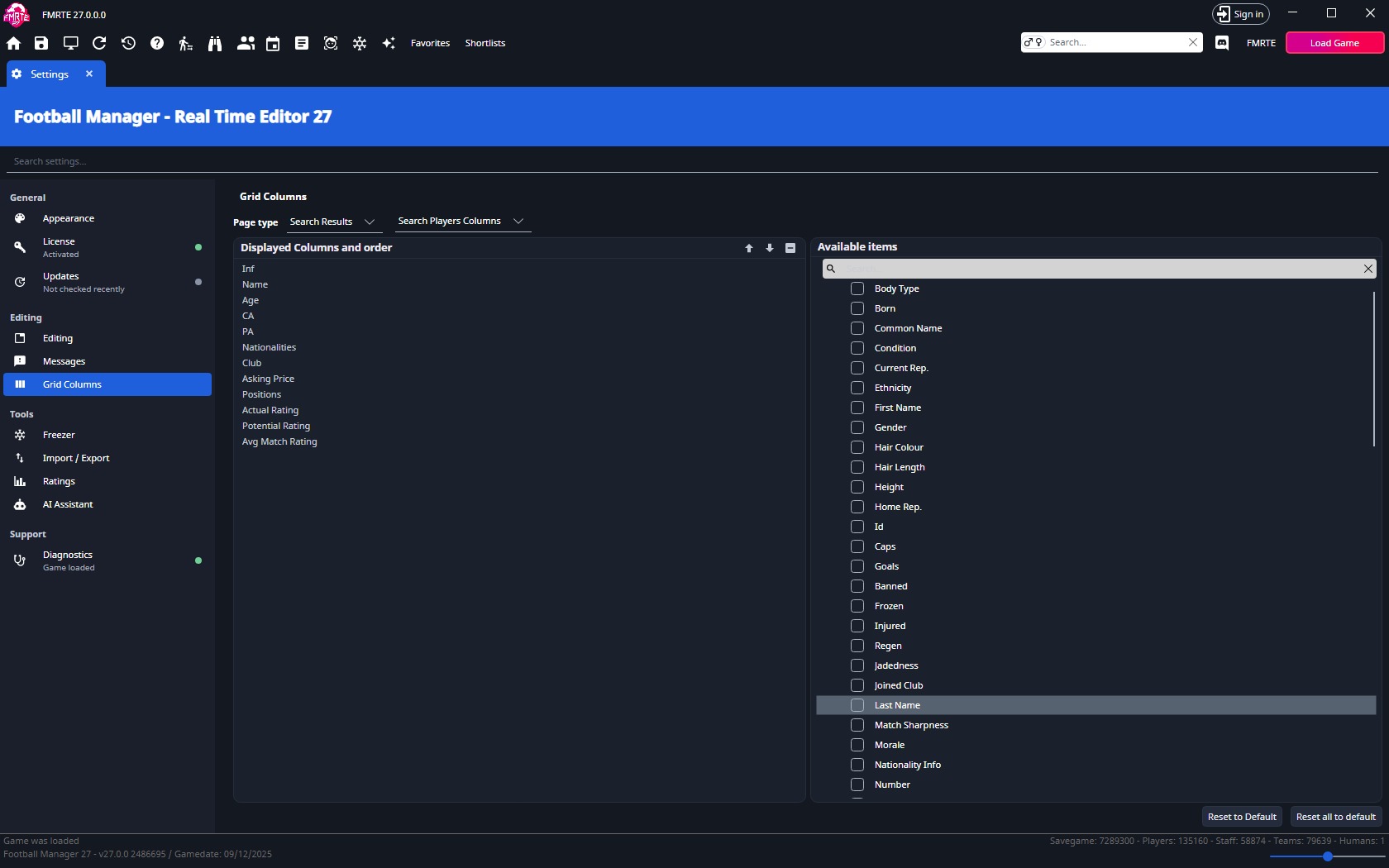
- Open Editing → Grid Columns.
- Choose Page type and the list.
- Select fields in Available items and order Displayed Columns and order.
- Save Settings and reopen the list.
These preferences change FMRTE lists, not Football Manager screens or your saved search criteria.
Sort by one or more columns
- Click a header to sort by that column only. Click it again to reverse the order.
- Shift+click another header to add it as the second, then third, sort column. Rows that tie on the first column are ordered by the second, then by the third. A list sorts by up to three columns. Shift+clicking a fourth replaces the third.
- Shift+click a header that is already sorted to reverse that column only.
Every sorted column shows an arrow. The second and third columns also show a small ² or ³ after their name. A plain click on any header goes back to a single sort column.
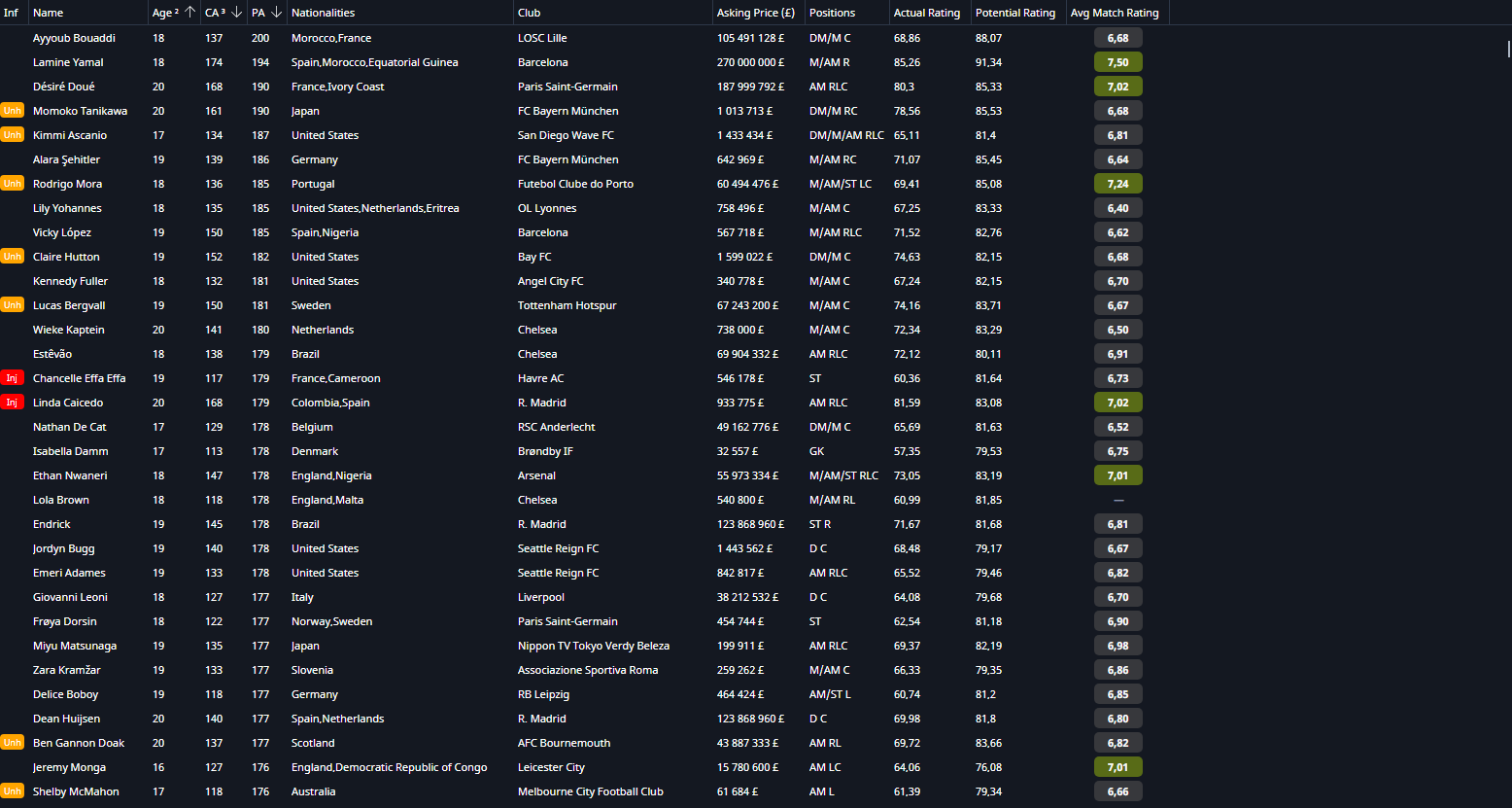
FMRTE remembers the whole sort for each list and restores it when the list opens again. Removing a sorted column drops it from the sort, and the other sort columns stay. Grouped lists, such as competition standings shown by group, keep their groups and sort the rows inside each group by your columns.
Large search results, such as every player in a big save, can take a moment to reorder. The window stays responsive meanwhile, and the rows change order once the sort is ready.
Reset a column layout
Reset to default restores the selected layout, and Reset all to default restores every layout. Save after using the Settings layout editor.
Columns disappear, sorting is wrong, or the list jumps
Large results reorder shortly after you click a header. This delay is expected. If you unload or reload the game before the sort finishes, the list shows its rows unsorted and without arrows. Click the header again to sort it. The saved sort is still used the next time the list opens.
Otherwise, check the layout for the list you are using, reset it if needed and reopen the list. If the issue persists, include the list name and steps in a support report.
Editing-tool settings
| Page under Tools | Contents |
|---|---|
| Freezer | Player and Staff tabs with separate property selections. See Freezer. |
| Import / Export | Player and Staff tabs with separate field selections. See Export and import. |
| Ratings | Ability Weights (formerly Recommended CA), Role Weights and Wonderkid Generator tabs. |
| AI Assistant | Provider profiles and API keys. See AI Assistant. |
Structured pages are found by their page names and keywords. Their individual fields are not indexed by the global Settings search.
Settings won't save
Keep Settings active when selecting Save Changes. Return to the page and check that the value persisted. If saving fails, include the error and setting name in a support report.