Supported onWindowsmacOSLinux (Steam Deck)
Open in
Exporting and importing a player template
Export saves a reusable player profile. Import copies your selected categories into an existing player, it does not create a clone.
To copy one player straight onto others without a file, use the player's Clone Center tab.
Export a known profile
- Open the source player's Information page.
- Use the Export icon in the Information quick controls.
- Save the file with a recognisable name, such as
box-to-box-midfielder.

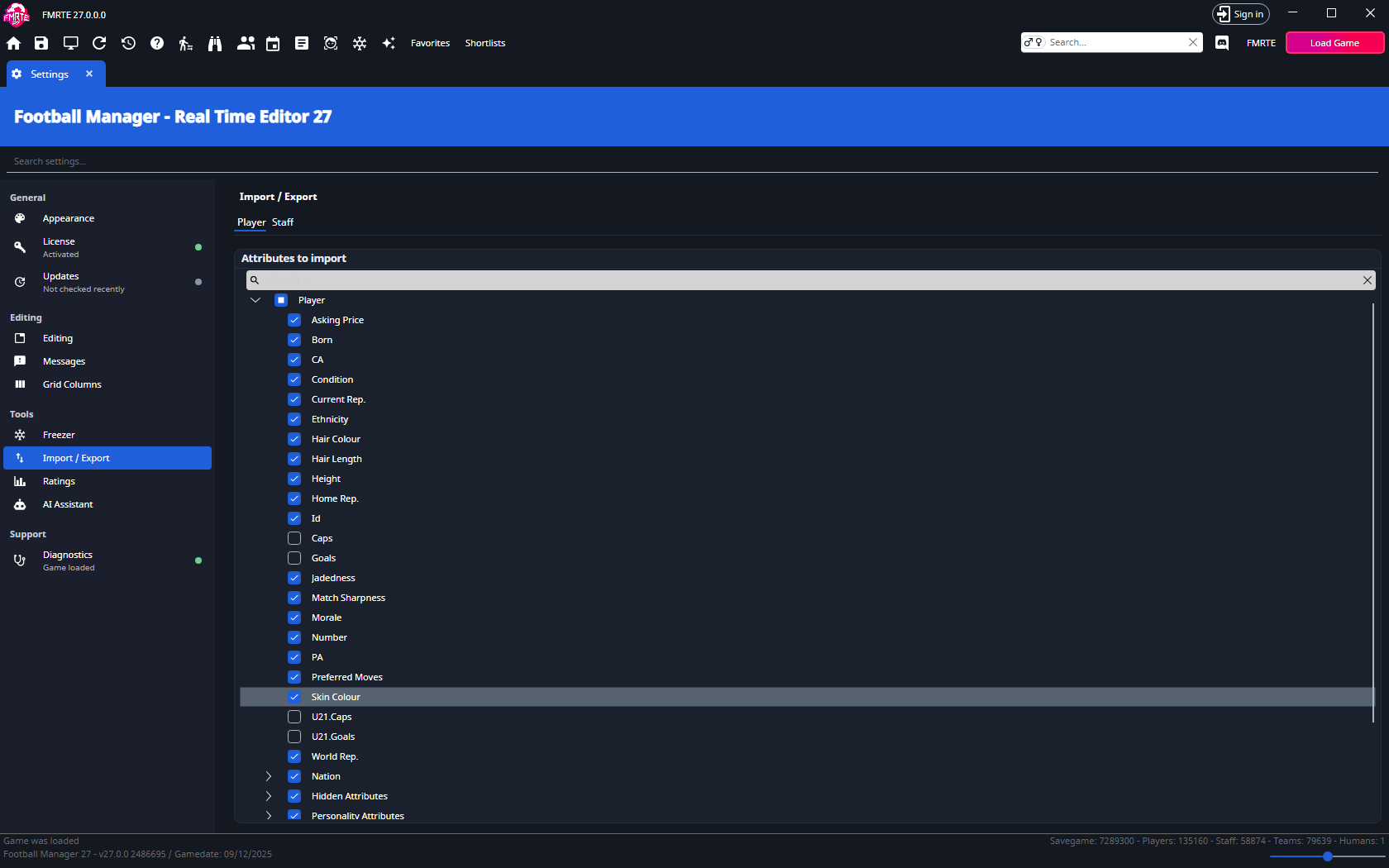
Choose what import is allowed to change
- Open FMRTE → Settings → Tools → Import / Export.
- Select the Player tab and choose the fields under Attributes to import.
- Select only the categories you want to copy.
- Save Settings.
Import into the intended player
- Open the target player and select Import.
- Choose your exported file.
- Import writes the selected fields to the running game. Check the refreshed values and the import entry in Edit History.
- Reopen the player in Football Manager and confirm the result.
Import supports the current player export format and legacy .fmp files. Legacy .pxml imports are no longer offered. An import is recorded in Edit History without scalar undo support.