Open in
Finding your way around FMRTE
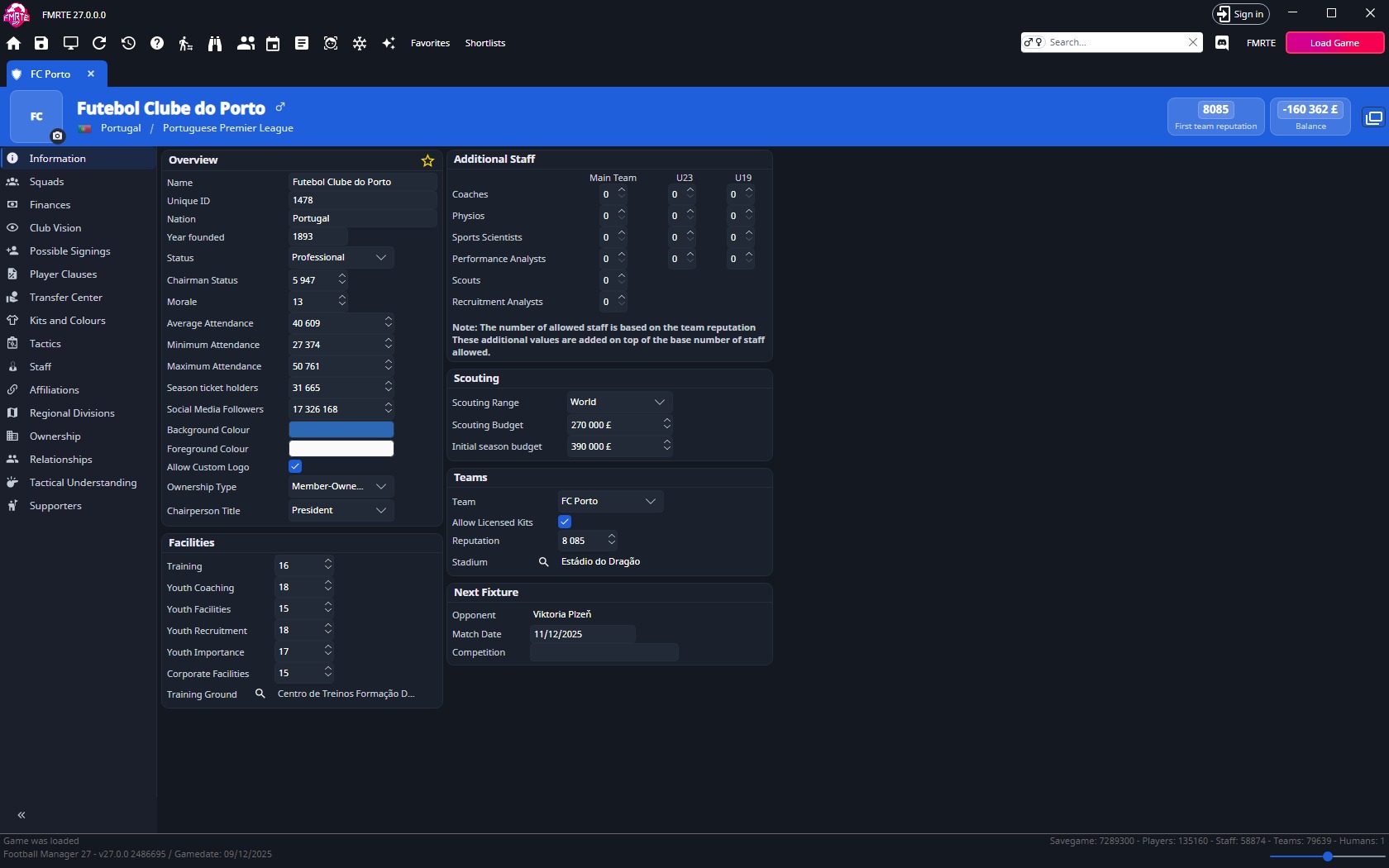
The toolbar opens tools, the tabs hold your records, and the status bar identifies your loaded savegame.
The controls you need first

| Control | Use it to… |
|---|---|
 | Read the savegame currently open in Football Manager. |
 Save Changes Save Changes | Save edits from the active page to the running game. |
 Current Screen Current Screen | Open the player you're viewing in Football Manager. |
 Reload Reload | Read fresh values for the active record. |
 Edit history Edit history | Open Edit History to review and undo this session's edits. A badge on the button counts the edits you can still undo. |
 | Open your manager, club and saved favourites. |
 Home Page Home Page | Visit the FMRTE website. |
Hover over an icon in FMRTE to see its label. Save in Football Manager when you want to keep your edits in the save file.
Search, tools and record tabs
Search by name or UID, or use Advanced Search, a powerful, customizable filter to narrow results by players, staff, and clubs.
Each record opens in a main tab. Its sections, such as Information, Contract or Positions, appear in the collapsible rail on the left. Use the rail control to show labels or icons. Auto mode collapses the rail on narrower pages.
Drag a tab to move it. Right-click a tab for Close, Close Other Tabs and Close Tabs To The Right.
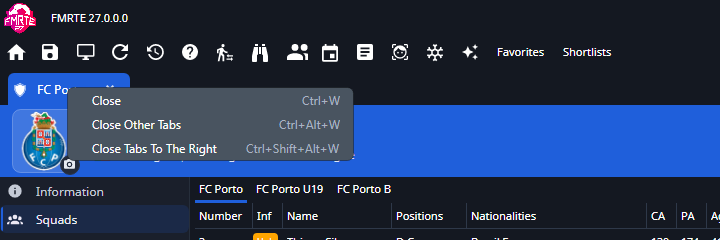
If double-clicking opens a tab without showing it, select that tab. You can change this in Settings.
| Tool | What it opens |
|---|---|
 Advanced Search Advanced Search | Filters to find players, staff and clubs by attributes, contracts and other criteria |
 Mass Edit Mass Edit | Editing multiple players, staff or clubs at once |
 View Future Transfers View Future Transfers | A list of future transfers |
 Retirements Retirements | Players and staff with a planned retirement date |
 Preset Manager Preset Manager | Reusable editing actions |
 Facepack Installer Facepack Installer | Tools to install facepacks and assign faces in Football Manager |
 Freezer Manager Freezer Manager | Frozen players and staff |
 AI Assistant AI Assistant | Shows or hides the floating AI Assistant. The button appears only when the assistant is available. |
 | Shortlist files and in-game shortlists |
 Online Help Online Help | Help with using FMRTE |
 Discord Discord | The FMRTE community chat |
FMRTE menu
The FMRTE menu sits between Discord and Load Game:
- Settings opens Settings.
- Visit FMRTE Home Page opens the FMRTE website.
- What's new opens the FMRTE tab on its What's new page. When there are several entries, use the arrows to move between them.
- About opens the same tab on Information, with a Third party components page.
Save the page you're editing
Select Save Changes while the page you're editing is active. This saves changes from that page to the running game.
An accent outline marks a pending field edit, and a * marks an unsaved tab. Saved fields become green after the game-memory write. Reloading or closing drafts asks before discarding them. Edit History records eligible changes and offers Undo.
Headers can show portraits, logos and editable values. A player header exposes CA/PA and Asking Price (Asking Price is hidden when the window is narrow), and the club header exposes reputation and balance. These use the same fields as their editing sections.
Current Screen
Open a player's profile or Attributes screen in Football Manager, then select Current Screen in FMRTE.
Occasionally, this feature may not work correctly or may display the wrong item (player, club, etc.). To avoid this, simply switch between one or two tabs in-game before using it.
For example, if you're on a player's profile, navigate to the Attributes tab (or any other tab within that profile), then press the Current Screen button.
Check the name and club: detection can sometimes find the wrong player. Use Search if it does.
Status bar
The status bar at the bottom shows the current status message, details of the loaded savegame and the game version.
Drag the slider on the right to scale the tabs, header and page from 50% to 150%, in 10% steps. FMRTE remembers the scale. You can also set Interface scale in Settings → General → Appearance.

Keyboard shortcuts
| Action | Windows | macOS |
|---|---|---|
| Save current tab | Ctrl+S | Cmd+S |
| Reload current page | Ctrl+R | Cmd+R |
| Quick Search | Ctrl+F | Cmd+F |
| Advanced Search | Ctrl+Shift+F | Cmd+Shift+F |
| Settings | Ctrl+, | Cmd+, |
| Mass Edit | Ctrl+M | Cmd+M |
| Close current tab | Ctrl+W | Cmd+W |
| Close other tabs | Ctrl+Alt+W | Cmd+Option+W |
| Close tabs to the right | Ctrl+Shift+Alt+W | Cmd+Shift+Option+W |
| Copy the selected rows of a list | Ctrl+C | Cmd+C |
Right-click actions
Right-click a row in a list to act on it without opening the record. Select several rows first to act on all of them.
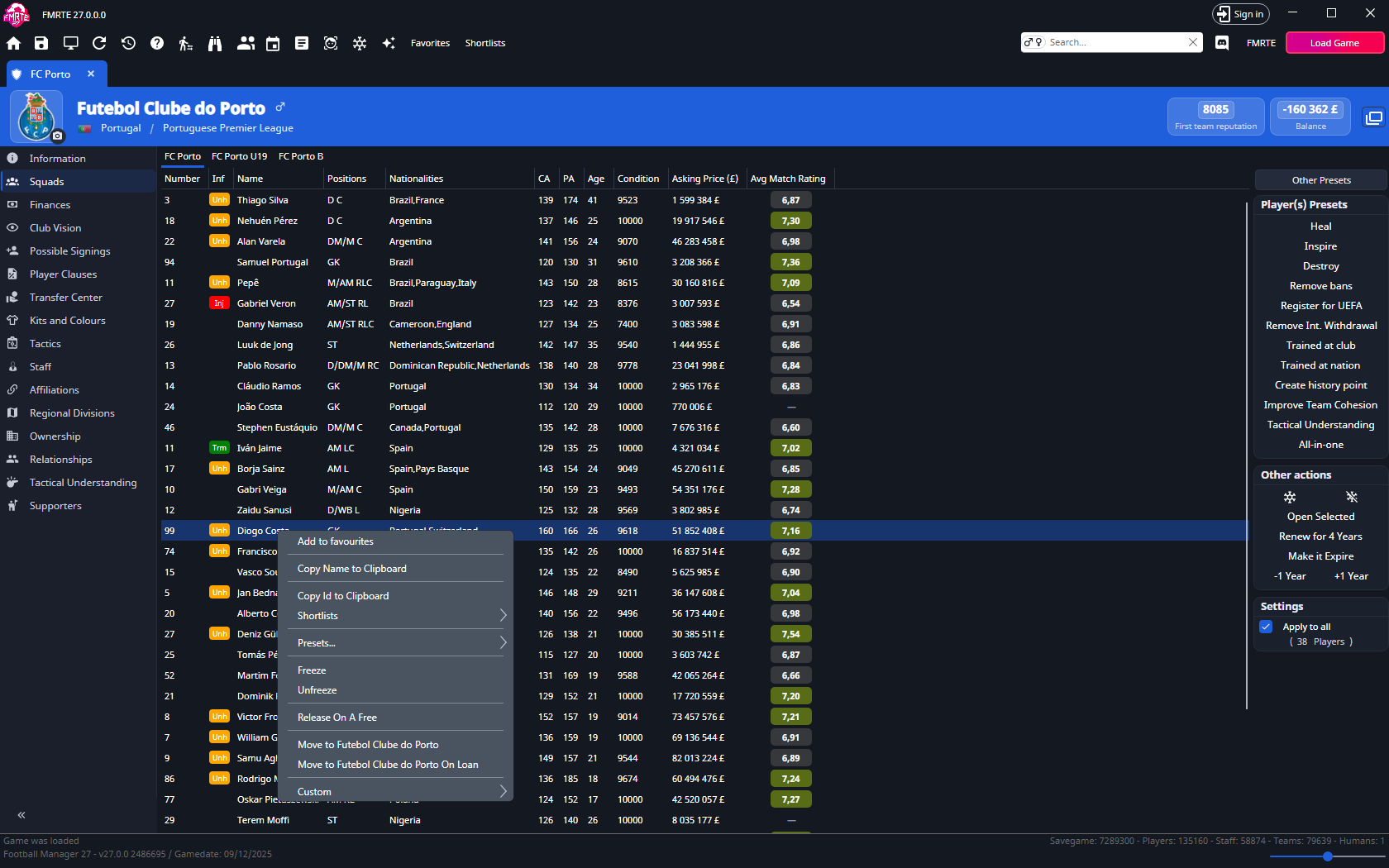
On a player or staff page, the ⋮ button in the header opens the same menu for that person.
| Record | Where you can right-click | Actions |
|---|---|---|
| Players | Search results, a club or nation's Squads tab, Possible Signings, Player Clauses, player shortlists, View Future Transfers, Retirements and the player header | Player row actions |
| Staff | Search results, a club or nation's Staff tab, staff shortlists and the staff header | Staff row actions |
| Clubs and nations | Search results | Club and nation row actions |
In most lists the menu is built when the list opens. If an item marked Shown when is missing after you change a preset, a human manager's club or the experimental features setting, close the list and open it again.