Open in
Search and Advanced Search
Search and Advanced Search are free features. No purchase or license is required.
Use the search box for a quick lookup by name or id. For more precise results, use Advanced Search to combine multiple criteria and find specific players, clubs, or staff.
For sentence filters, previews and recent searches, see Quick Search.
For a complete filter-and-results walkthrough, follow Find young players.
Find a record by name
- Open Quick Search from the search box or
Ctrl+F(Cmd+Fon macOS), then type a name or ID. - Choose Men's Football, Women's Football, or both if needed.
- Select a preview to open the record, or press Enter to open the full results and double-click the correct row.
The record opens in a tab. If it opens in the background, select that tab or change the search-tab settings.
Use Advanced Search
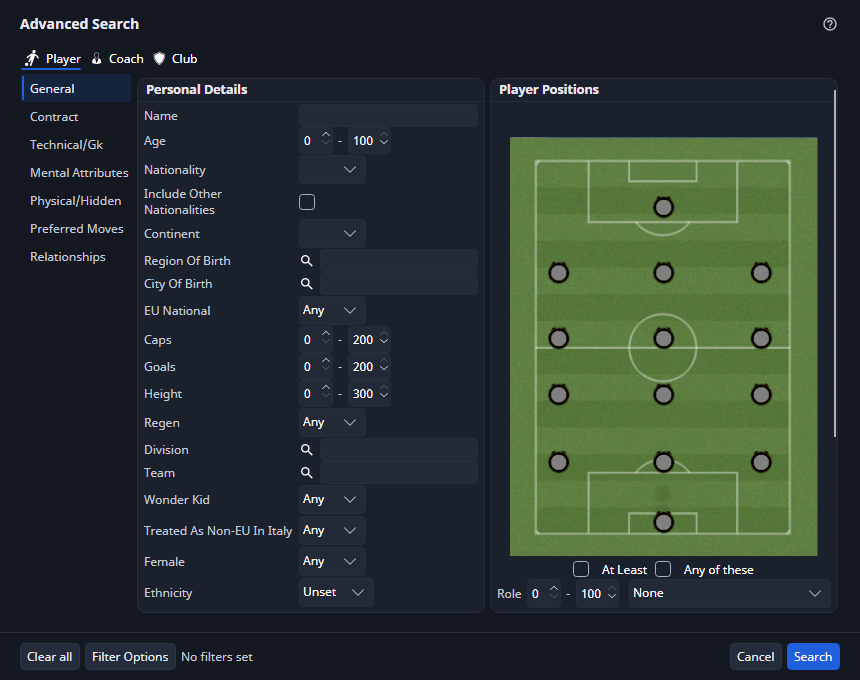
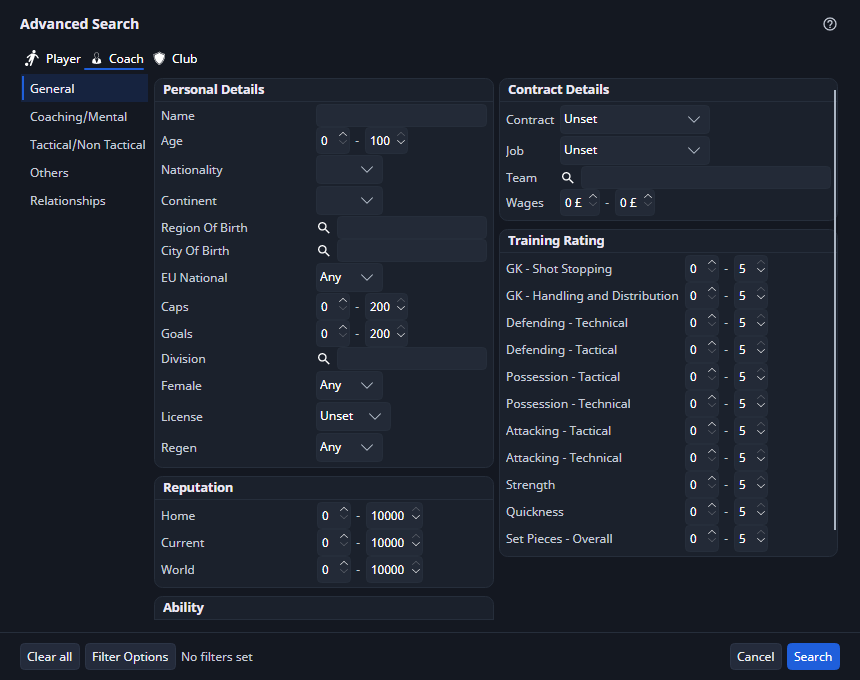
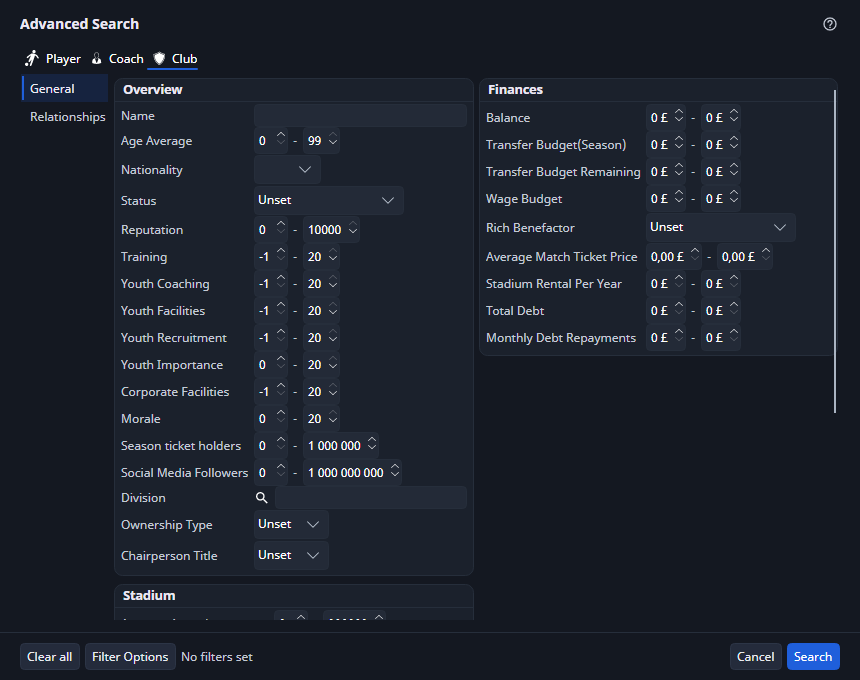
Advanced Search combines filters to narrow your results. Each search type has its own criteria:
| Search type | Available criteria include |
|---|---|
| Player | Age, nationality, continent, region and city of birth, ethnicity, ability, attributes, positions and contract details |
| Coach | Nationality, continent, region and city of birth, contract details, coaching attributes, scouting attributes and training ratings |
| Club | Facilities, finances, debt and stadium details |
- Open Advanced Search with the binoculars button or
Ctrl+Shift+F(Cmd+Shift+Fon Mac). - Select Player, Coach or Club.
- Choose the filters you need from the categories on the left.
- Select Search to run the search.
Fields with minimum and maximum values let you set a range. Narrow ranges and additional criteria reduce the number of matches.
In a Player search, Ethnicity under Personal Details keeps only players of the ethnicity you choose. Leave it at Unset to include every player. The choice is saved with the search.
Find clubs by balance or debt
In a Club search, the Finances group has these money ranges. A range left at 0 to 0 does not filter.
| Range | What it matches |
|---|---|
| Balance, Transfer Budget(Season), Transfer Budget Remaining, Wage Budget | The club's current value. These accept negative amounts, so you can find overdrawn clubs: for example, set Balance from −999,999,999 to −1. |
| Total Debt | The original amounts of all the club's loans, added together. This is not the amount still owed. |
| Monthly Debt Repayments | The monthly repayments of all the club's loans, added together. |
To see the totals in the results, add Total Debt and Monthly Debt Repayments with Add/Remove columns. Club finances explains what the totals include.
Save and reuse search criteria
Use Filter Options → Save to save your criteria and Filter Options → Load to reuse them. Clear all removes the current criteria.
Saved criteria control which records match a search. Column settings control which details appear in the results.
A search asks for a license or returns unexpected results
Scouting is free. If a license prompt appears while configuring search criteria, record the exact category and button, your FMRTE build and a screenshot in a support report.
For missing results, use Clear all, then add one criterion at a time. If a player you expect still does not match, include their unique ID and the chosen bounds. For international caps or goals, include the player's actual values and whether the filter accepts the range you need.
If the search stops responding, include the search criteria, how long you waited and whether the rest of FMRTE responds in a support report.
Use the result
Open a record, save players to a shortlist, or edit the group with Mass Edit.
To order the results, click a column header. Shift+click more headers to sort by up to three columns. See Sort by one or more columns.
Combine position filters
By default, position requirements are combined: every nonzero position criterion must match. Turn on Any of these to accept a match for any selected position. At Least changes exact position values to minimum values. A zero value adds no position requirement. Clear all resets the criteria.
Compare performance statistics
Open a player’s Stats section for season figures, percentile comparisons and league leaderboards. You can also add read-only season and career statistics to player lists with Add/Remove columns.