Open in
Editing a group with Mass Edit
Mass Edit changes multiple players, staff or clubs at once. Choose the group with its filters, then set the changes to apply. Check the target count before Apply.
How the window works
- Open Mass Edit from the toolbar or use
Ctrl+M(Cmd+Mon Mac). - Choose Player, Coach or Club.
- Select Choose who to edit… (or Change filter… after a selection), enter your criteria, and run the filter.
- Check the returned count.
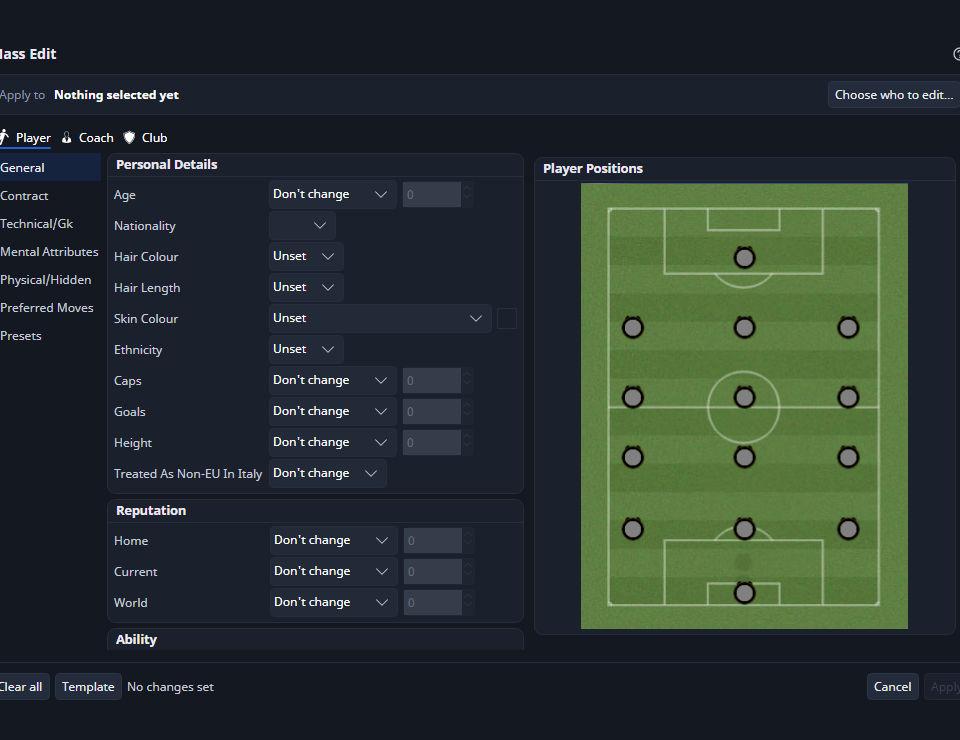
Example: change three players Current Reputation
Current Reputation uses 0–10,000. To set three players to 5000:
- Filter Player by club and a narrow age range that matches those three players.
- Confirm the count is 3 players.
- In Player → General → Reputation → Current, choose Set to and enter 5000.
- Leave unrelated fields on Don't change and Match CA to PA off.
- Check the scope named on the Apply to … button (for example Apply to 3 players), then select it. Wait for execution to finish and inspect the Mass Edit results tab.
Set or remove a release clause
For players, the Contract tab has Release clause, Release clause fee and Remove release clause. Choose the clause type in Release clause, then:
- Set to a fee: players without that clause get it, with no expiry date.
- Change by an amount: only players who already have that clause are adjusted.
- Remove release clause: removes that clause type and leaves the player's other clauses.
Apply a preset in Mass Edit
Choose the record type and filter, then add a preset under Presets → Preset(s) to apply. Check both its actions and the target count before Apply.
Some presets act on related records, such as a club's players. Check the action's target as well as the filter.
Set to or Change by: which one do I need?
| Mode | Starting value | Amount | Result |
|---|---|---|---|
| Don't change | 120 | — | 120 |
| Set to | 120 | 130 | 130 |
| Set to | 150 | 130 | 130 |
| Change by | 120 | 10 | 130 |
| Change by | 150 | 10 | 160 |
Change by keeps the result inside the field's range, so an attribute never goes past 20.
Save the form for later
The Template button at the bottom of the window works on the selected tab (Player, Coach or Club):
| Option | What it does |
|---|---|
| Load | Fills the tab from a saved template file |
| Save | Saves the tab's values as a template file (.pmedit, .smedit or .cmedit) |
| Save as preset… | Turns the tab's values into a preset |
A template refills the Mass Edit form. A preset can be applied without opening Mass Edit.
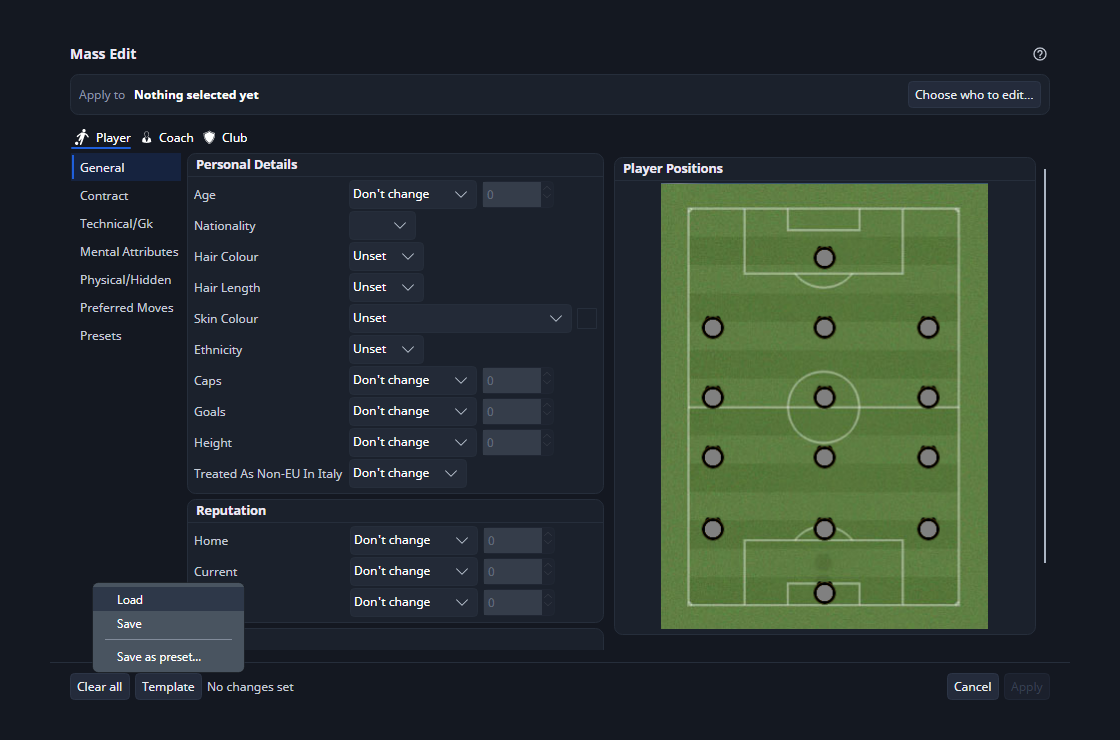
Save the changes as a preset
Use Save as preset… to keep a set of changes you apply often, such as a finance boost for a group of clubs.
- Set the values on the Player, Coach or Club tab. You don't need to choose who to edit.
- Select Template → Save as preset….
- Type a name under Preset name and select Ok.
- Read the message. It names the preset, and lists any changes left out.

The preset is added to Players, Staff or Clubs in Preset Manager, switched on. Apply it from a right-click Presets menu or from Presets → Preset(s) to apply here. Player presets also show under Player(s) Presets on a club's Squads page.
The name can have up to 30 characters. FMRTE refuses:
- an empty name
- a name with any of
\ / : * ? " < > |, or a name Windows reserves, such asCONorNUL - the name of a built-in preset, such as Heal or Inspire
Replace a preset you saved before
If a preset already has the name, in any letter case, the dialog asks first and Ok changes to Replace. Select Replace to overwrite it, or edit the name to keep both. The replaced preset keeps its name, its place in the list and whether it was switched on. If it was in another category, the question says it will move, for example from Players to Clubs.

What goes into the preset
Each value you set becomes one preset action. Set to stores the exact value. Change by stores the amount to add or subtract, and keeps the range Mass Edit allows, such as 0 to 20 for an attribute. Choices such as positions, hair, skin colour, ethnicity, Treated as non-EU in Italy, coaching License and Rich Benefactor are stored too.
Some changes can't be stored in a preset. FMRTE leaves them out and lists them by their field names in the message, one per line or, past eight, on a single line:
| Tab | Left out |
|---|---|
| Player | Nationality, Match CA to PA, Wages, contract Type, contract expiry (Contract), Release clause fee, Remove release clause, Preferred Moves |
| Coach | Nationality, Match CA to PA |
| Club | Status, Ownership Type, Chairperson Title, stadium Capacity and the pitch sizes |
| Any tab | Presets added under Presets → Preset(s) to apply |
The attendance values on the club Stadium page are stored. If none of the values you set can be stored, no preset is saved and the message lists them.
Amounts of money keep the currency and wage period you used. See Amounts and currency.
Target scope and execution
The target summary and Apply label show which group will be edited. Apply is disabled until at least one target is selected. During execution the dialog shows a busy indicator and disables conflicting actions. Successful execution opens a Mass Edit results tab. Use Edit History to inspect recorded changes and eligible undo values.