Supported onWindowsmacOSLinux (Steam Deck)
Open in
Editing a group with Mass Edit
Mass Edit changes multiple players, staff or clubs at once. Choose the group with its filters, then set the changes to apply. Check the target count before Apply.
How the window works
- Open Mass Edit from the toolbar or use
Ctrl+M(Cmd+Mon Mac). - Choose Player, Coach or Club.
- Select Press me To Filter, enter your criteria, and select Ok.
- Check the returned count.
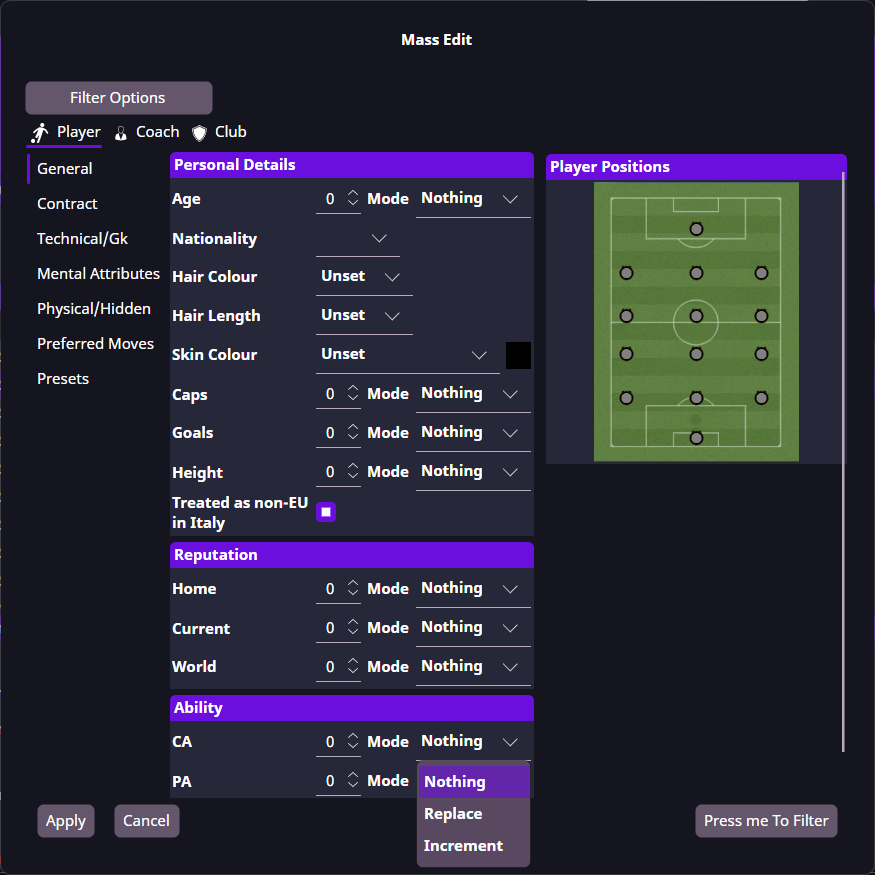
Example: change three players Current Reputation
Current Reputation uses 0–10,000. To set three players to 5000:
- Filter Player by club and a narrow age range that matches those three players.
- Confirm the count is 3 players.
- In Player → General → Reputation → Current, choose Replace and enter 5000.
- Leave unrelated fields on Nothing and Match CA to PA off.
- Select Apply and check the confirmation.
Apply a preset in Mass Edit
Choose the record type and filter, then add a preset under Presets → Preset(s) to apply. Check both its actions and the target count before Apply.
Some presets act on related records, such as a club's players. Check the action's target as well as the filter.
Replace or Increment: which one do I need?
| Mode | Starting value | Amount | Result |
|---|---|---|---|
| Nothing | 120 | — | 120 |
| Replace | 120 | 130 | 130 |
| Replace | 150 | 130 | 130 |
| Increment | 120 | 10 | 130 |
| Increment | 150 | 10 | 160 |