Open in
FMRTE settings
Use FMRTE → Settings to choose your language, display preferences and how FMRTE's editing tools behave.
After changing a setting, keep the Settings tab selected and press Save Changes in the toolbar. You can also use Ctrl+S on Windows/Linux or Cmd+S on macOS.
How to change FMRTE language
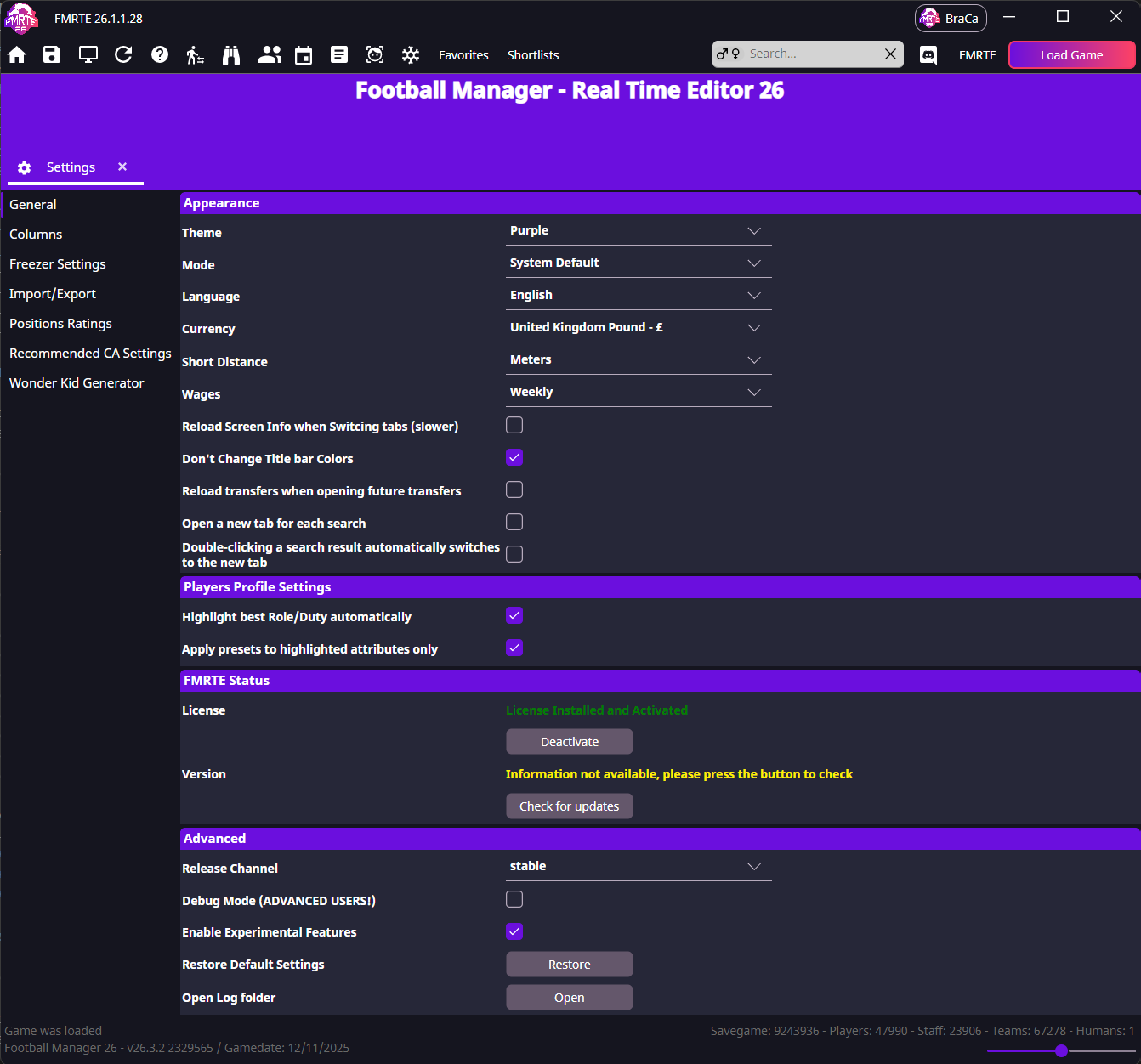
- Open FMRTE → Settings → General.
- Under Appearance, choose your preferred Language from the dropdown.
- Select Save Changes to apply it to FMRTE's interface.
How to change currency
- In General → Appearance, open Currency.
- Select the currency you want FMRTE to use.
- Select Save Changes.
Monetary amounts you view and enter in FMRTE use this currency. Changing the preference leaves the underlying financial values unchanged.
How to change the theme and appearance
- In General → Appearance, choose Theme: Purple or Pink.
- Choose Mode: Light, Dark or System Default. System Default follows your operating system's appearance.
- Select Save Changes.
Theme controls the accent colour, Mode controls the light or dark appearance.
To keep the header colours consistent as you browse profiles, tick Don't Change Title bar Colors in Appearance and save.
How to change measurement and wage units
In General → Appearance, select the units you prefer, then select Save Changes.
| Setting | Choices | What it controls |
|---|---|---|
| Short Distance | Meters or Yards | The unit used for short-distance measurements. |
| Wages | Weekly, Monthly or Yearly | The period used when displaying and entering wages. |
Changing the wage period changes how the amount is presented, while preserving the underlying wage.
Search and tab behavior
In General → Appearance, tick or clear these options, then select Save Changes.
| Setting | Effect |
|---|---|
| Open a new tab for each search | Enable it to keep each search in its own results tab. Disable it to reuse the results tab. |
| Double-clicking a search result automatically switches to the new tab | Enable it to show the opened profile immediately. Disable it to stay in the results list while the profile opens in another tab. |
| Reload Screen Info when Switcing tabs (slower) | Reload screen data when you switch tabs. This can make switching slower. |
| Reload transfers when opening future transfers | Reload transfer data when you open Future Transfers. |
Player profile settings
In General, scroll to Players Profile Settings. Choose the options you want and select Save Changes.
| Setting | Effect |
|---|---|
| Highlight best Role/Duty automatically | Select the player's best-rated role and duty when you open Information. |
| Apply presets to highlighted attributes only | Limit compatible attribute presets and group + / − adjustments to the highlighted attributes. |

Use the role selector on Information to choose which attributes are highlighted.
License and updates
In General, scroll to FMRTE Status.
| Control | What you can do |
|---|---|
| License | Check activation status and use the available activation or deactivation control. See Licensing for the full steps. |
| Version → Check for updates | Check whether an FMRTE update is available. |
Advanced settings
In General, scroll to Advanced.
| Setting or control | How to use it |
|---|---|
| Release Channel | Choose Stable or Beta, then select Save Changes. Beta provides earlier builds that may be less stable. |
| Debug Mode (ADVANCED USERS!) | Enable diagnostic logging when investigating a problem with support, then select Save Changes. |
| Open Log folder → Open | Open the folder containing FMRTE's logs. |
| Restore Default Settings → Restore | Restore FMRTE's default preferences. This does not undo edits already saved to the game. |
How to enable Experimental Features
- In General → Advanced, tick Enable Experimental Features.
- Select Save Changes while Settings is active.
This makes experimental tools available, including competition fixture editing. Clear the checkbox and save to disable the setting.
Choose columns and their order
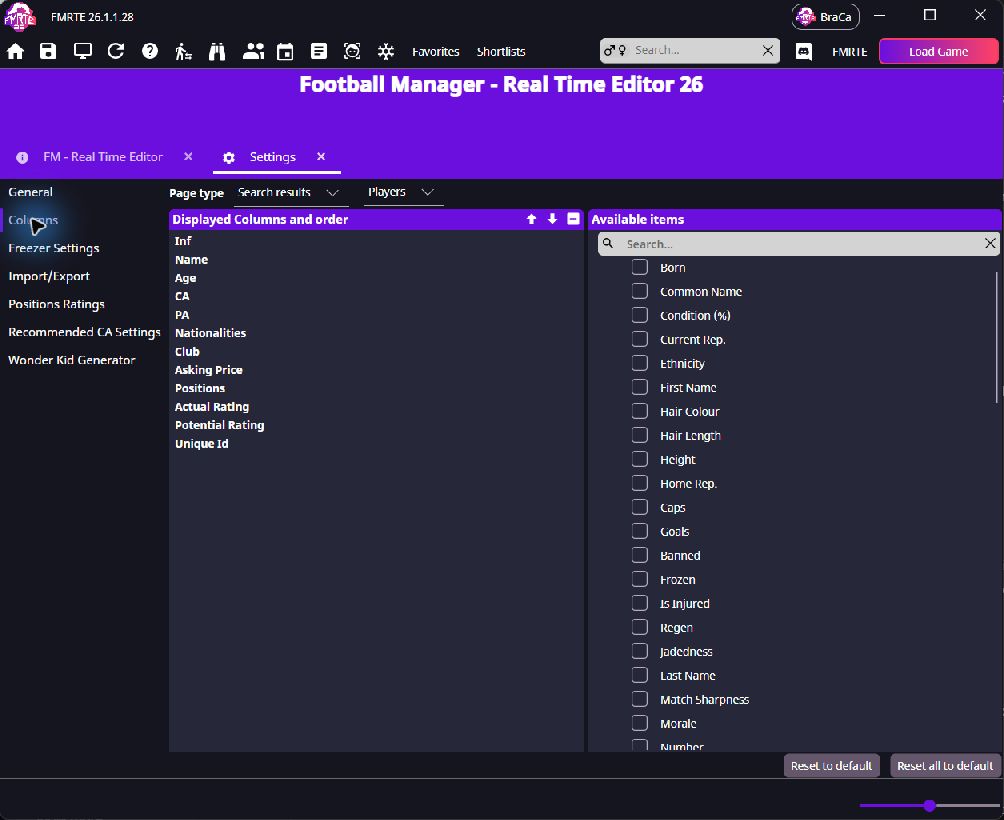
Use Columns to choose which details appear in search results, club and national-team lists, the Freezer, retirements and future transfers. Each list has its own layout.
- Open FMRTE → Settings → Columns.
- Choose Page Type and the list you want to change, such as Search results → Players.
- Tick a field in Available Items to add it.
- Use the arrows in Displayed Columns and Order to move a column.
- Clear a column's checkbox or select it and use − to remove it.
- Select Save Changes while Settings is active.
- Reopen the list to see the columns.
These settings change FMRTE's lists. They do not change Football Manager's screens or your saved Advanced Search criteria.
Reset a column layout
Reset to default restores the selected layout. Reset all to default restores every layout.
Columns disappear, sorting is wrong, or the list jumps
Check that you saved the settings for the list you are using. If the problem continues, report the affected list, column, sort direction and the action that caused it.
Configure other tools
Choose a section on the left of Settings, adjust its options, then select Save Changes.
| Section | What you can configure |
|---|---|
| Freezer Settings | Choose the player or staff attributes to freeze and which may increase. See Freezer settings. |
| Import/Export | Choose which player or staff properties may be imported. See Import settings. |
| Positions Ratings | Adjust the attribute weights used by FMRTE's position ratings. |
| Recommended CA Settings | Adjust the attribute weights used to calculate Recommended Current Ability. |
| Wonder Kid Generator | Configure potential-ability ranges and their probabilities. See Generator settings. |
Settings won't save
- Select the Settings tab again.
- Select Save Changes.
- Reopen Settings and check your selection.
Save Changes acts on the selected FMRTE tab. If you switch to a player before saving, it saves that player's page.
Keyboard shortcuts
| Action | Windows/Linux | macOS |
|---|---|---|
| Save current tab | Ctrl+S | Cmd+S |
| Reload current page | Ctrl+R | Cmd+R |
| Mass Edit | Ctrl+M | Cmd+M |
| Close current tab | Ctrl+W | Cmd+W |
| Close other tabs | Ctrl+Alt+W | Cmd+Option+W |
| Close tabs to the right | Ctrl+Shift+Alt+W | Cmd+Shift+Option+W |
Save Changes saves the current FMRTE tab. Save in Football Manager to keep those edits in the save file.