Open in
Faces, logos and header images
FMRTE can show portraits and logos in record headers and manage individual custom images for people, clubs, nations and competitions. These custom-image actions also update Football Manager graphics mappings.
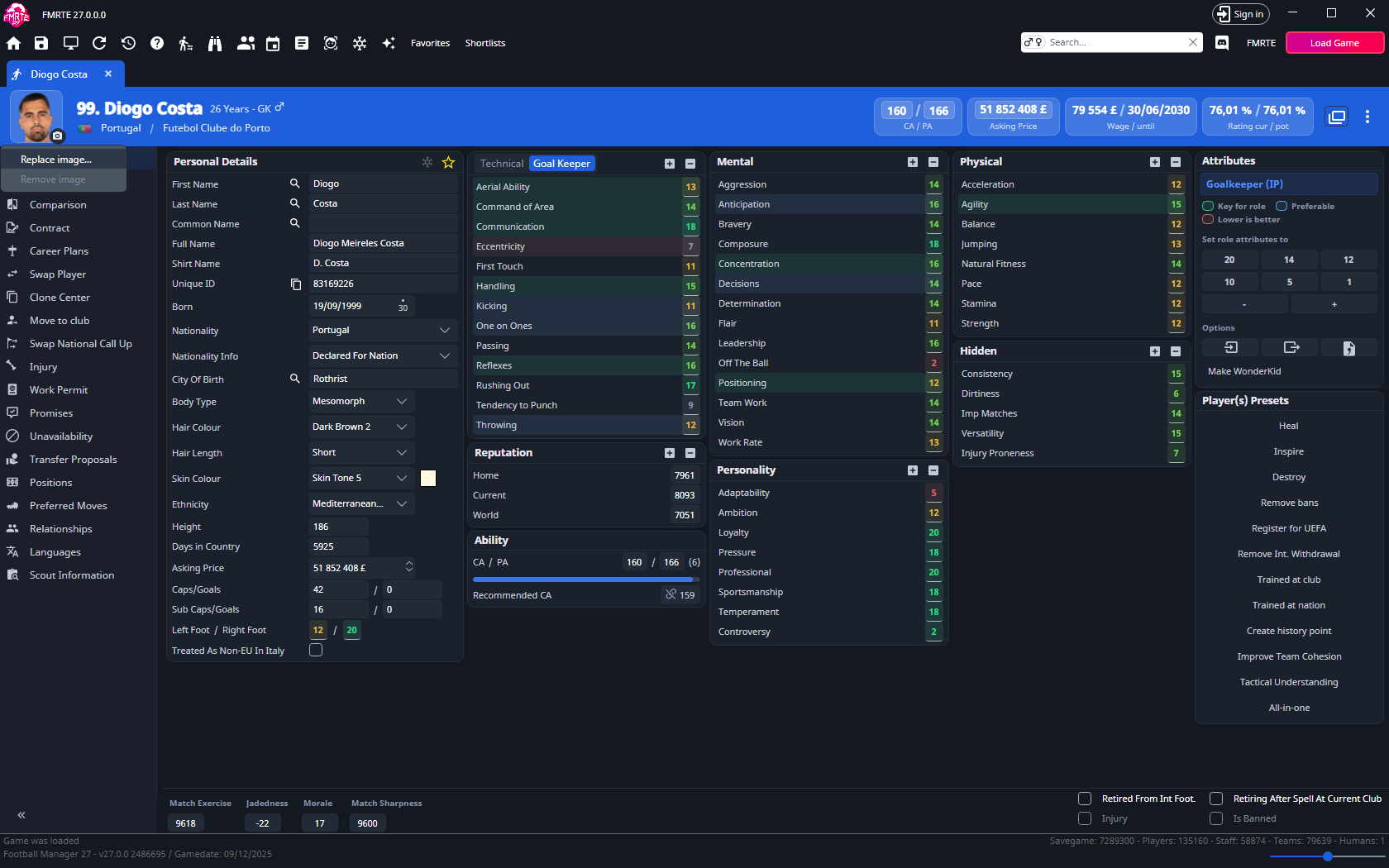
Show images in FMRTE
- Open Settings → General → Appearance.
- Enable Show header images.
- Choose whether to enable Use the game's built-in images.
- Save Settings and open a record.
FMRTE can use custom graphics-pack images, the game's built-in images and initials when no image is available. Select a displayed image to open its preview.
Add or replace an image
- Load your savegame and open the intended record.
- Open the camera menu beside its header image.
- Choose Add image… or Replace image…, as offered.
- Select a PNG, JPG or JPEG file.
- Check the header image and follow the displayed graphics-reload guidance.
Use images within the supported limits: 8 MiB and 2,048 pixels on the longest side.
Custom portraits go into FMRTE-Faces and logos into FMRTE-Logos in the game's graphics folder. These are shared folders. Mappings for the record are adjusted across installed packs to avoid conflicting entries, so this is not an isolated display preference for FMRTE or a save-specific pack.
Remove a custom image
Open the camera menu and choose Remove image for a custom image. Check the header and refresh graphics as instructed. A built-in game image cannot be removed with this action, but it can be replaced with a custom image.
For a whole pack of portraits, use Facepack Installer. For a game that does not show refreshed images, follow that guide's refresh guidance.