Open in
Moving players between clubs
Move a player immediately, arrange a loan, swap two players or change an agreed future transfer.
For a permanent move from start to finish, follow Move a player to another club.
Move a player immediately
- Open the player and select Move to club.
- Check Move and From, then search beside To for the destination.
- Leave On loan clear for a permanent move.
- Save and check the destination squad and player's contract in Football Manager.
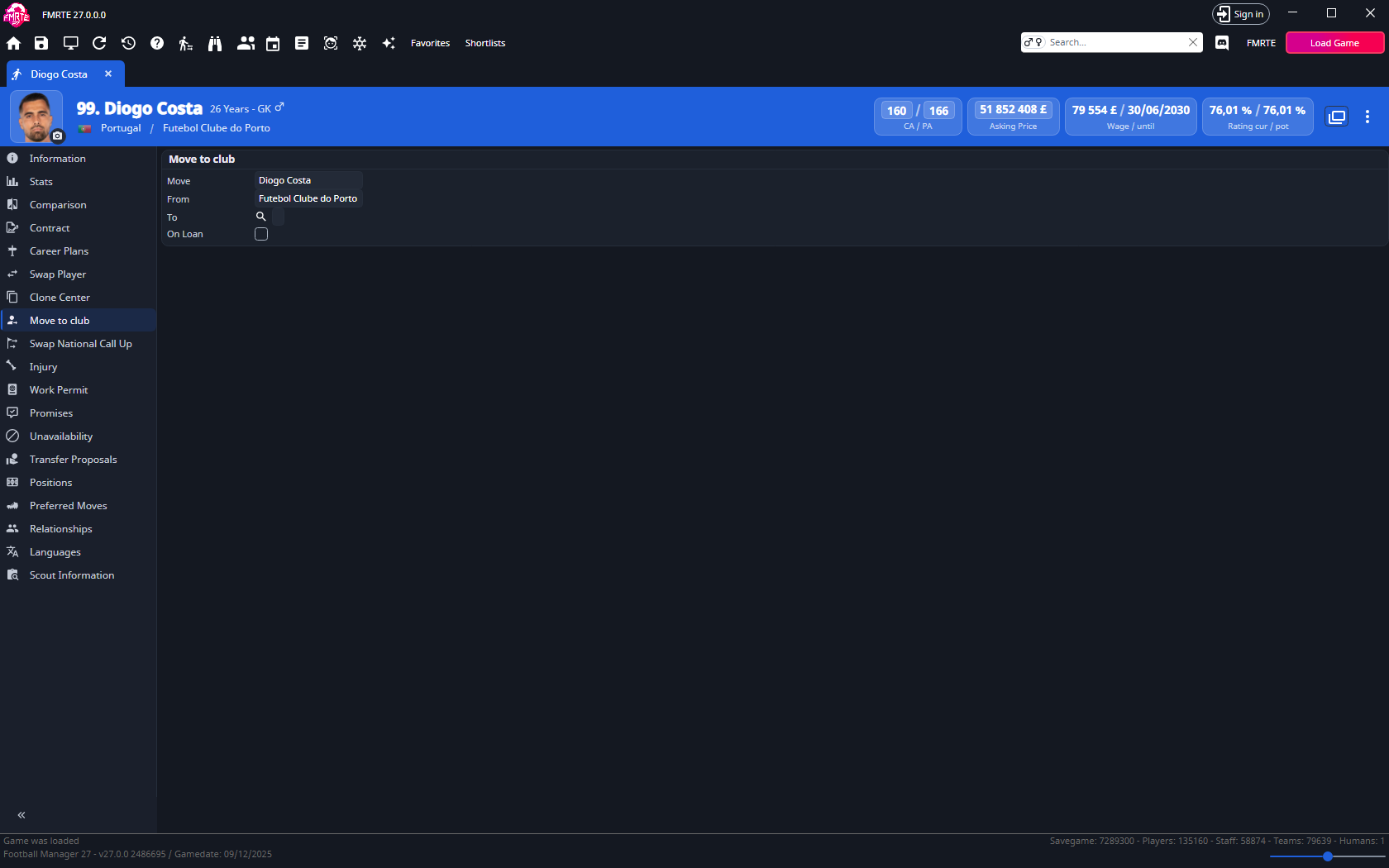
No transfer fee is exchanged automatically. Adjust club finances separately if wanted, and check registration and permits.
Loan a player
The player must already have a full contract with another club.
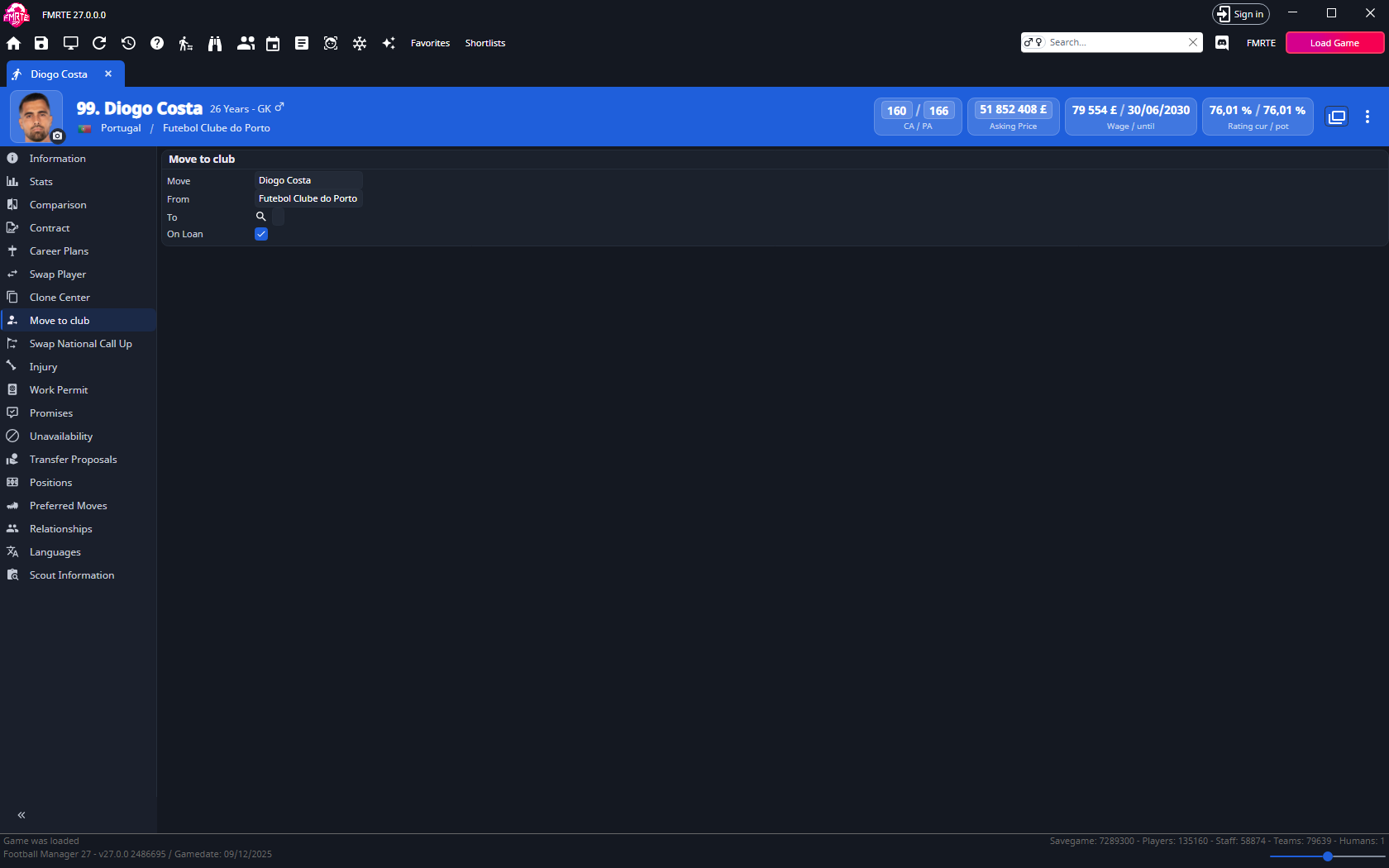
- In Move to club, select the destination, tick On loan and save.
- Reload the player and open Loan Contract.
- Set dates, wages, agreed price, monthly fees, playing time and clauses as needed.
- Save again and check the parent club, loan club and terms in Football Manager.
Swap two players
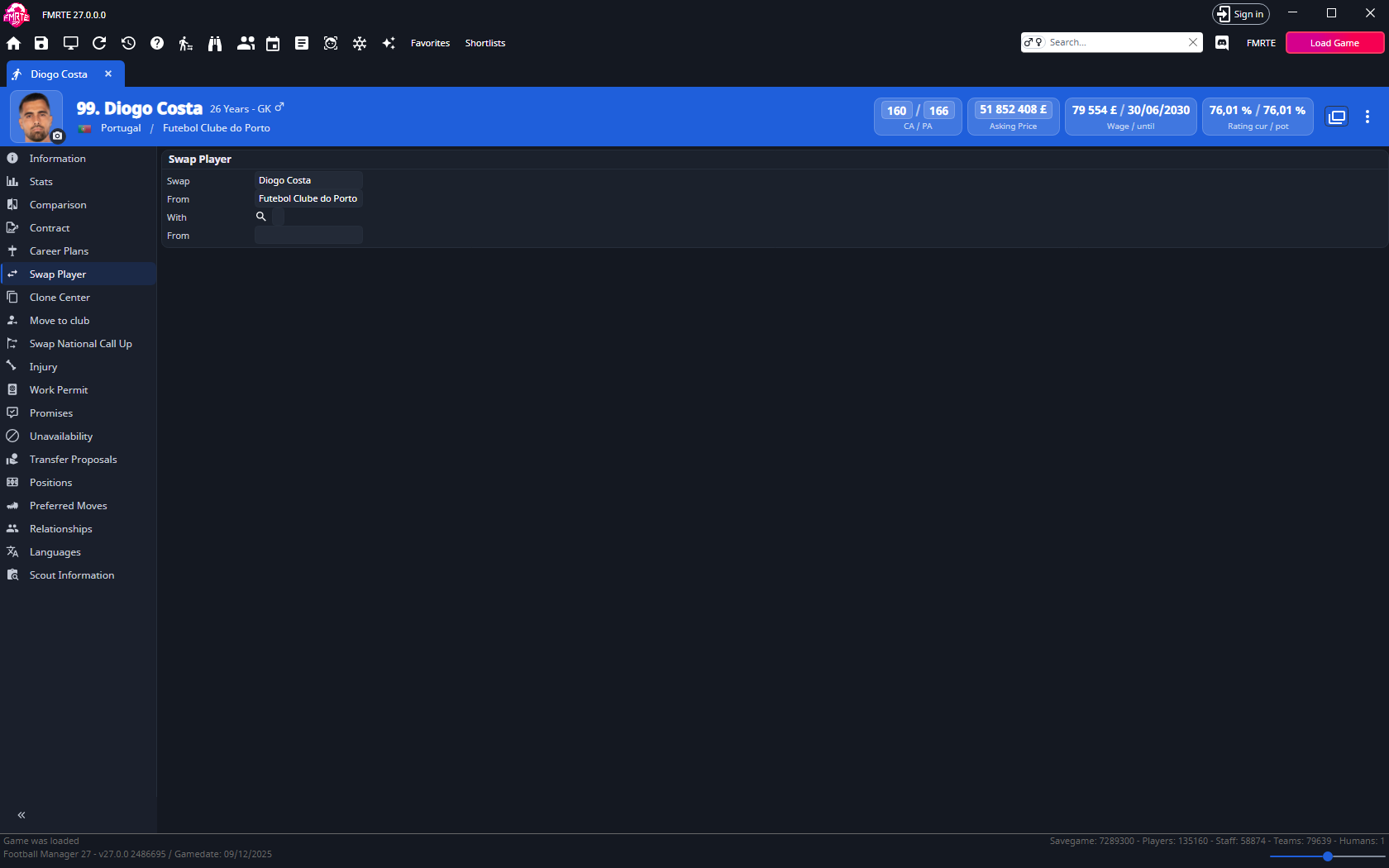
- Open Swap Player on the first player.
- Search for the second player. Both need contracts.
- Check the names and clubs, then save.
- Check both squads and contracts in Football Manager.
Review transfer proposals
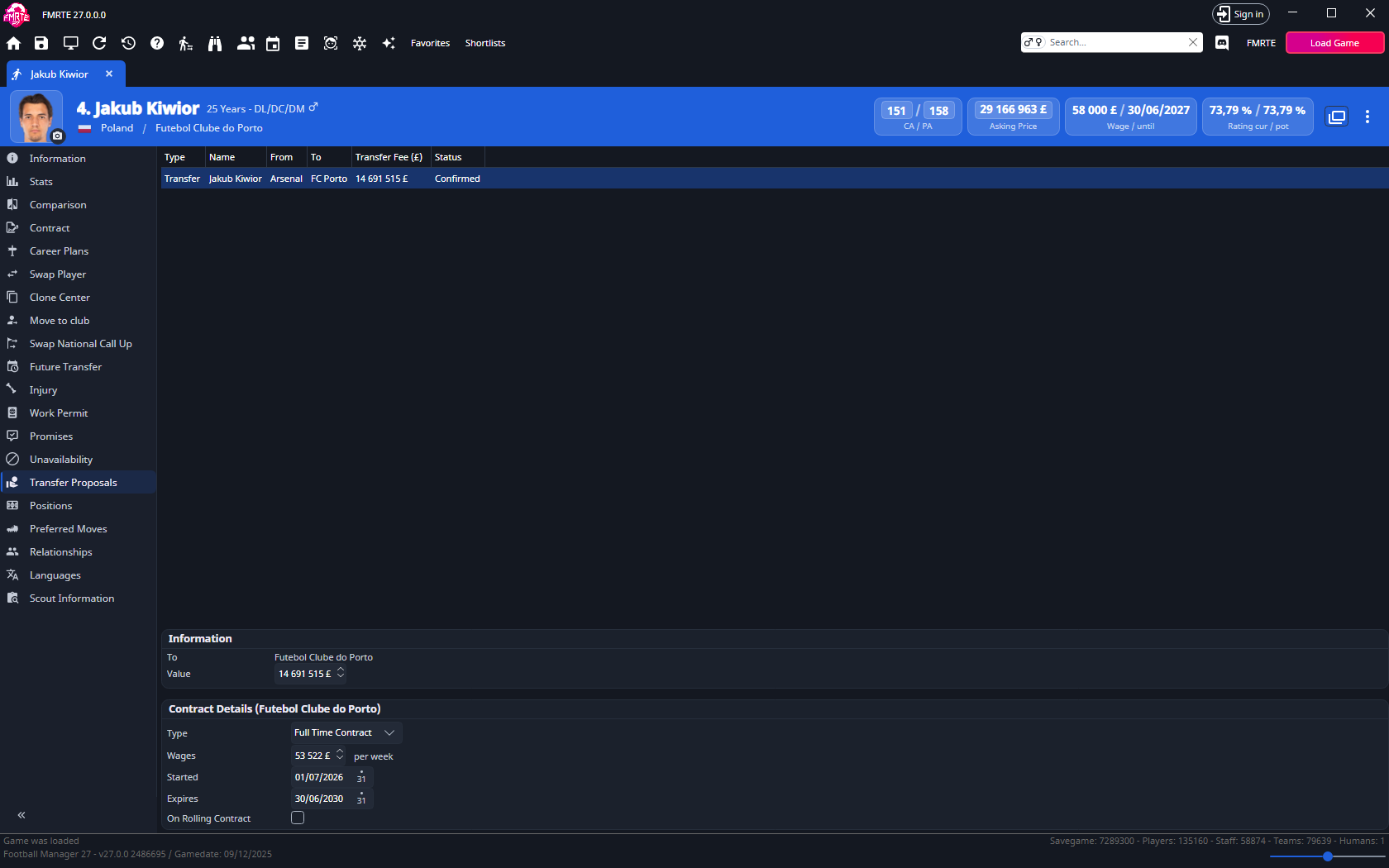
Transfer Proposals lists the player's transfer offers that are still open in the game. Enquiries, and offers that were rejected, cancelled or completed, are not listed.
| Column | Shows |
|---|---|
| Type | Transfer, Loan, Trade, Trial or B Club. |
| Name | The player. |
| From | The selling club. |
| To | The club making the offer. |
| Transfer Fee | The offered fee. |
| Status | Where the offer stands: Offer made, Negotiating, Seller accepted, Player accepted, Ready to sign, Delayed or Confirmed. |
To change an offer's fee:
- Open the player and select Transfer Proposals.
- Select the offer. Information below the list shows the club in To and the offer's Value.
- Change Value.
- Select Save Changes.
When the player already has a contract offer for that transfer, the contract appears below Information. Edit it as on Contract, then save.
You can't add or remove proposals here, or change the clubs. Double-click a row to open the player in a new tab.
Edit an agreed future transfer
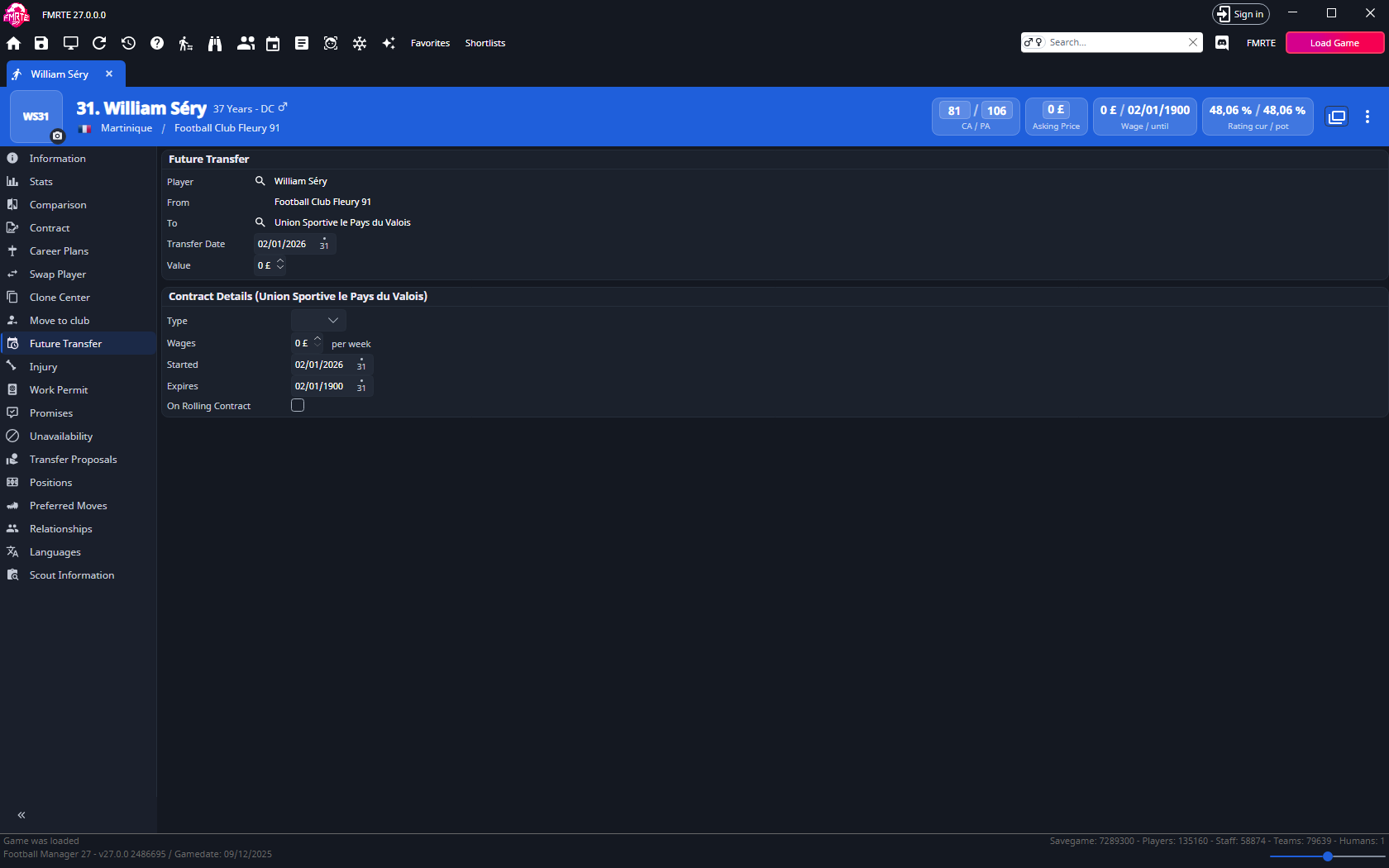
- Open View Future Transfers from the toolbar and select the deal.
- Change the destination, dates, fee or wages as needed. Keep transfer and contract-start dates consistent.
- Save and check the pending deal in Football Manager.
The Future Transfers list
View Future Transfers opens a Future Transfer tab with every confirmed future transfer in the save. It needs a loaded game.
By default the list shows these columns:
| Column | Shows |
|---|---|
| Name | The player |
| From | The selling club, or the free-agent label |
| To | The buying club |
| Transfer Fee | The agreed fee |
| Transfer Date | The day the move takes effect |
| Type | The kind of deal |
Select a header to sort. To show other fields, see Choose columns and their order.
Filter the list
Use Future Transfers - Filter below the list:
- show all future transfers clears the filters and lists every deal. This is the default.
- show unimportant future transfers lists only deals where both clubs have a reputation from 0 to 4000 and the buying club is not in a playable league.
- Advanced filter options sets your own ranges. Tick buyer reputation, seller reputation, transfer value or Transfer Date and enter the range. playable league has three states: ticked for buying clubs in a playable league, cleared for the others, and the middle state to ignore it. Select Apply filter to update the list.
Both Transfer Date boxes start at the current game date.
Work with a deal
Select a row to show its Future Transfer details beside the list:
- Player, From and To are links that open the player or club in a new tab.
- The search button beside Player replaces the player in the deal. From follows the new player's club. If that player already has another future transfer, FMRTE warns you before saving.
- The search button beside To changes the destination club. This only works for a deal with a contract offer.
- Transfer Date must be at least one week after the current game date.
- Value is the transfer fee.
- When the deal has an agreed contract, its terms appear below and can be edited.
Select Save Changes to save the selected deal. A changed player, club or date is recorded in the edit history but cannot be undone there.
Double-click a row to open the player in a new tab. Right-click rows for the same player actions as other player lists.
By default the list uses the transfers FMRTE has already read from the game. To read them again each time you open the list, turn on Reload transfers when opening Future Transfers in Settings → Editing.
Release a player
Release on a free makes a player a free agent straight away. It needs a licence.
- Open the club and select the Squads tab, or open the player.
- Right-click the player's row, or several selected rows. On the player page, use the ⋮ button in the header instead.
- Select Release on a free.
- In Football Manager, check that the player is now a free agent with no club.
FMRTE then:
- removes the player from the club's teams and from any loan club
- deletes the loan contract and the full contract
- records the club the player was playing for as the previous club
- stops any new-position training
- removes pending contract offers, such as an accepted renewal
No compensation or fee is paid. FMRTE does not ask for confirmation, and the release cannot be undone from Edit History. To bring the player back, use Move to club.
To release a coach or other staff member, see Release a staff member.
If FMRTE cannot create a contract
For Unable to create a new contract, follow the contract-creation checks.