Supported onWindowsmacOSLinux (Steam Deck)
Open in
Facilities, reputation and attendance
Open the club's Information page. Facilities are on the left, select a team in Teams to edit its reputation.
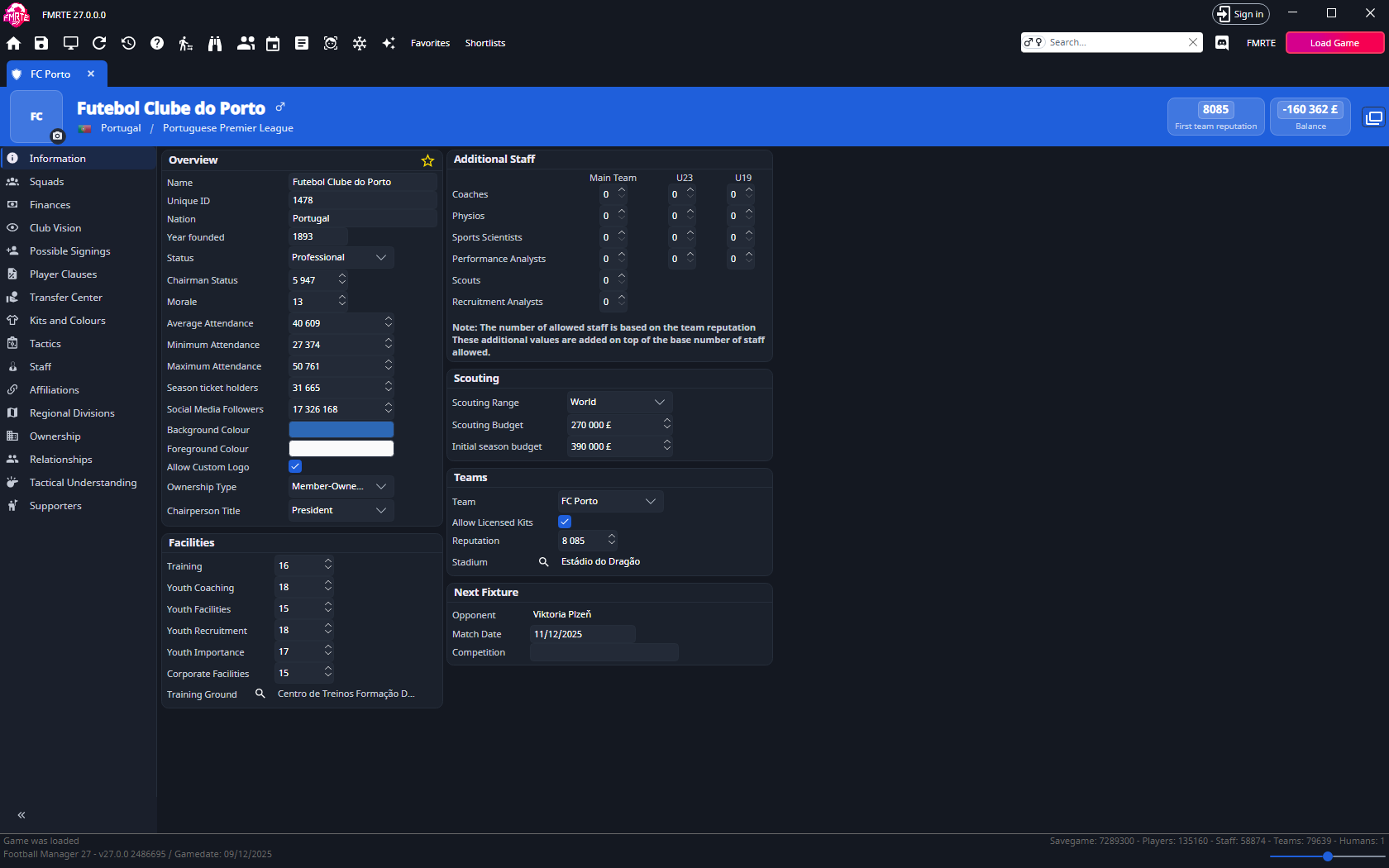
Know what the numbers represent
| Area | Fields | Values |
|---|---|---|
| Facilities | Corporate Facilities, Training, Youth Facilities, Youth Coaching, Youth Recruitment, Youth Importance | Use the usual 1–20 scale |
| Club record | Ownership Type, Chairperson Title | Choose the value that matches the club's legal ownership and chairperson role |
| Reputation | Team → Reputation | Each team has its own value |
| Attendance | Average Attendance, Minimum Attendance, Maximum Attendance | Whole people |
Editing reputation
In Teams, choose the correct first, reserve or youth team. Change Reputation, and press save.
Editing attendance
Keep Minimum Attendance ≤ Average Attendance ≤ Maximum Attendance. Stadium capacity can still limit crowds, these values do not add seats.
tip
For capacity and stand controls, see Stadiums.
Corporate Facilities keeps going back to zero
This has been reported for clubs in non-playable leagues.
- Check whether the league is playable, view-only or not loaded.
- Edit one club, save, and reopen it.
- If the value returns to zero, stop before using Mass Edit on more clubs.
- Report the club, league setup and whether finance data is available.
Change a team's stadium
In Teams, the Stadium row shows the team's ground. Select the name to open the stadium.
- In Teams, choose the team.
- Select the search button next to Stadium and choose the new stadium.
- Choose whether to select Update existing scheduled games. This option appears after you pick a stadium.
- Selected: the team's home games from the current game date on also move to the new stadium.
- Cleared: only games scheduled from now on use it.
- Select Save Changes.
A stadium change with Update existing scheduled games selected cannot be undone in Edit History.
Allow Licensed Kits is also in Teams. See Kits and colours.