Open in
Get an API key
To use a remote provider with the AI Assistant, you need an API key from that provider. This page shows how to create one for the three most used providers: OpenAI, Anthropic and Google Gemini. Each section follows the provider's official guide. The screenshots were taken on 31 October 2026, so the provider's pages may look a little different when you visit.
When you have the key, go back to Set up a provider, choose the matching Vendor and paste the key.
Anyone with your key can send requests that you pay for. Paste it only into FMRTE, never into a chat, forum post, screenshot or support report. If a key leaks, delete it in the provider's console and create a new one.
API usage is billed separately from ChatGPT, Claude or Gemini app subscriptions. A paid chat plan does not give you API credit.
OpenAI
You need an OpenAI Platform account. This is the same login as ChatGPT, but API usage has its own billing.
-
Sign in at platform.openai.com/api-keys.
-
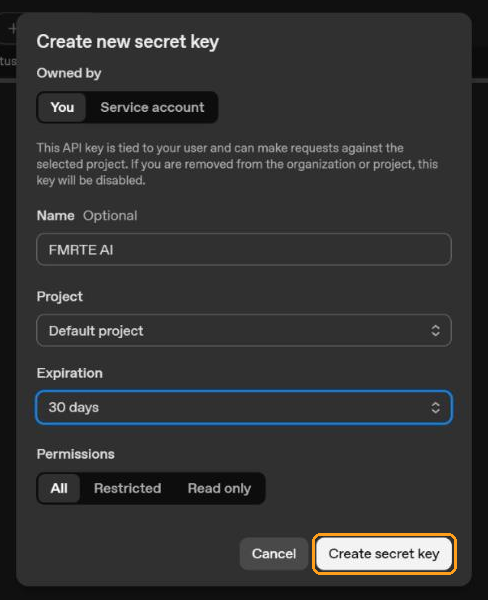
Select Create new secret key.
-
Leave Owned by on You.
-
Enter a Name, such as FMRTE AI, so you can recognise the key later.
-
Choose the Project. Default project is fine.
-
Choose an Expiration. When the key expires, FMRTE stops getting answers until you add a new key.
-
Leave Permissions on All. A restricted key can block the calls FMRTE uses to list models and send messages.
-
Select Create secret key.
-
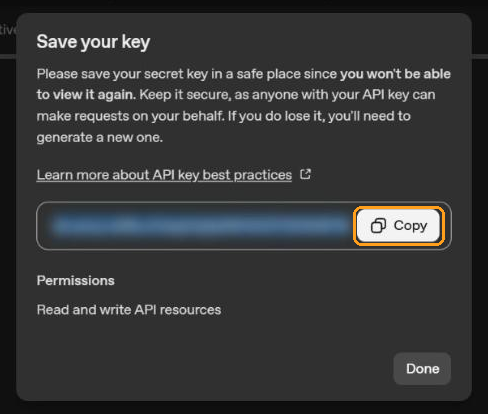
Select Copy and paste the key somewhere safe. OpenAI shows it only once. If you lose it, create a new key.
-
Add credit to your account under Settings → Billing in the OpenAI dashboard. Without credit, requests stop working after the free test allowance.

In FMRTE, choose the OpenAI vendor.
Anthropic (Claude)
You need a Claude Console account. This is separate from a Claude Pro or Max subscription.
-
Sign in at platform.claude.com/settings/keys.
-
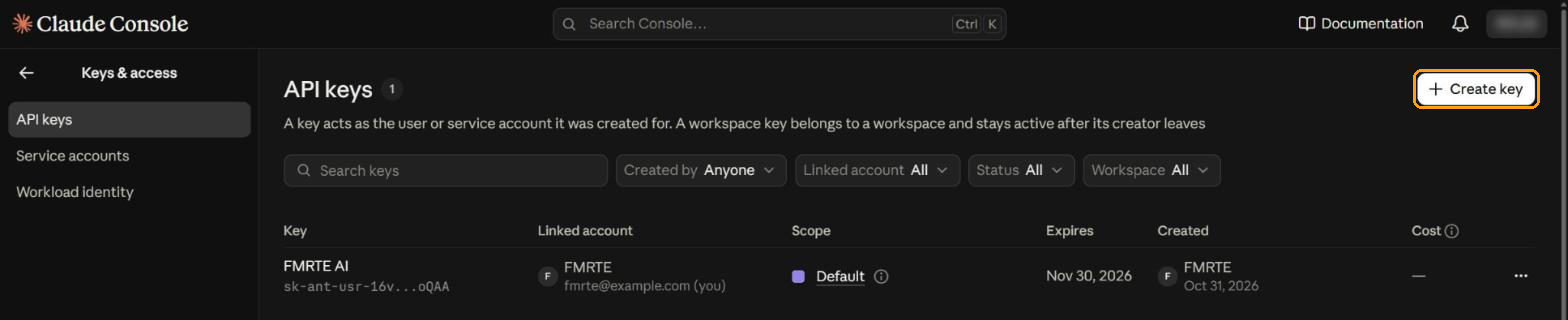
Select Create key.
-
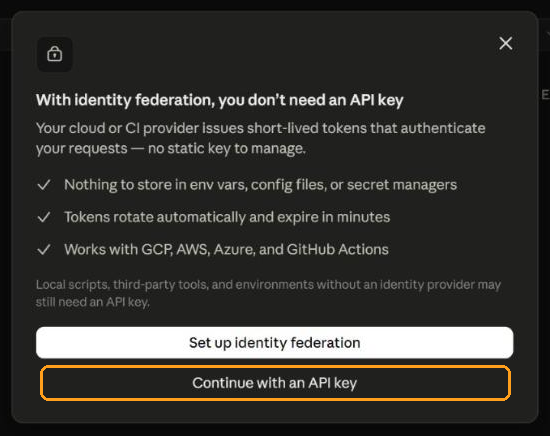
The Console may suggest identity federation instead. That is for cloud services, not for FMRTE. Select Continue with an API key.
-
Enter a Name, such as FMRTE AI.
-
Choose when the key Expires. The default is 30 days. When the key expires, FMRTE stops getting answers until you add a new key.
-
Leave Linked account on yourself.
-
Leave Scope on a workspace, such as Default workspace.
-
Select Create key.
-
Select Copy key and paste the key somewhere safe. The key starts with
sk-ant-. The Console shows it only once. If you lose it, create a new key. -
Buy credits under Settings → Billing in the Console. The API needs credit before it answers.
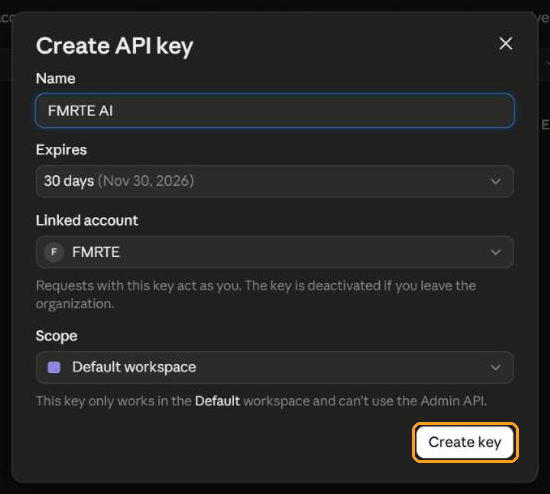
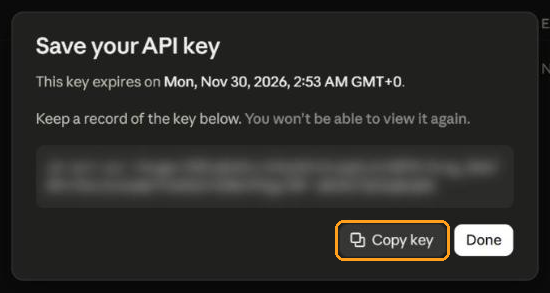
If Create key is disabled, your role in the organization can't create keys. Ask an organization admin.
In FMRTE, choose the Anthropic vendor.
Google Gemini
You need a Google account. Gemini API keys are created in Google AI Studio.
-
Sign in at aistudio.google.com/api-keys. The first time, accept the terms of service. AI Studio then creates a default project for you.
-
Select Create API key.
-
Under Name your key, enter a name, such as FMRTE AI.
-
Under Choose an imported project, pick a project. Default Gemini Project is fine.
-
Select Create key.
-
In API key details, select Copy key.

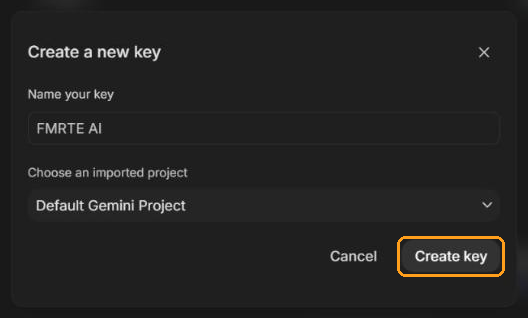
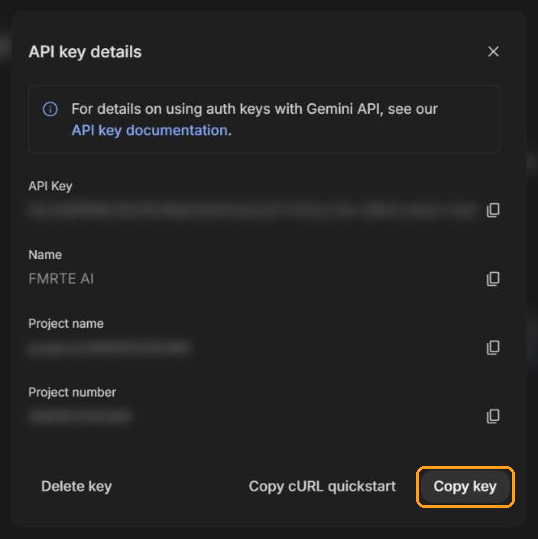
If you already use Google Cloud, AI Studio may not create a default project. Select Import projects on the API Keys page, import one of your projects, then create the key. If Create API key is unavailable, your Google Cloud role can't create keys. Ask an administrator, or use a project that isn't part of an organization.
Gemini has a free tier. On the free tier, Google uses the content you send to improve its products. That content includes the save data the assistant reads. To keep it out, select Set up billing next to the key to move the project to the paid tier.
In FMRTE, choose the Google Gemini vendor.
Other providers
The other remote presets, such as xAI Grok and DeepSeek, work the same way. Create a key in that vendor's developer console, then paste it into FMRTE with the matching Vendor. Local models in Ollama or LM Studio need no key.
If the key doesn't work
Select Test on the provider card in FMRTE. If it fails:
- Check that you copied the whole key, with no space before or after it.
- Check that the key hasn't expired or been deleted in the provider's console.
- Check that your account has credit or billing set up.
- Check that the Vendor matches the provider that issued the key.
If you can't find the key any more, create a new one and paste it into the provider profile. You can't view an OpenAI or Anthropic key again after you close the dialog.