Open in
AI Assistant recurring tasks
A recurring task repeats a request for you while you play. You describe what to watch for, the AI Assistant turns it into a schedule in in-game time, and FMRTE tells you when a run finds something. Tasks belong to one save, so they come back when you load the same save again.
Good requests are checks you would otherwise repeat by hand:
- "Every month, tell me about new academy prospects at FC Porto."
- "Every week, tell me when a new wonderkid appears."
- "Every month, list the best young players in Portugal."
Create a task
- Load your savegame and open the assistant.
- Ask for the check in plain words, including how often you want it.
- Read the New recurring task card the assistant shows.
- Select Create task.
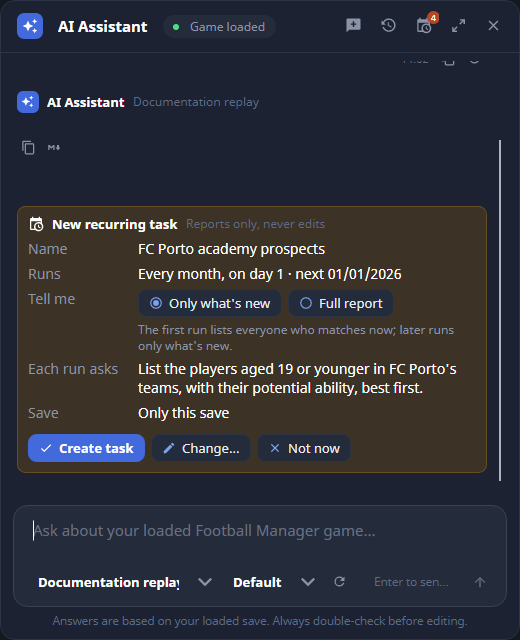
Nothing is scheduled until you select Create task. The card shows:
| Field | What it means |
|---|---|
| Name | The name the task has in your list. |
| Runs | The schedule in in-game time, and the next run date. |
| Tell me | Only what's new reports players it has not reported before. Full report lists every match on every run. |
| Each run asks | The exact request each run repeats. |
| Only this save | The task runs only for the save you created it in. |
| Reports only, never edits | A reporting task has no way to change your save. |
The first run of an Only what's new task lists everyone who matches now. Later runs list only what's new.
To adjust the card, select Change… and say what to change in the message box. Select Not now to discard it. A card that you leave for a long time expires, and the assistant asks you to request it again.
Schedules
Schedules count in-game days, not real time. The assistant can set:
- every N days
- weekly, on a weekday
- monthly, on a day of the month (a day past the end of a short month runs on its last day)
- once, on a date
Open the Tasks list
Select Tasks in the panel header. The list shows how many tasks are running and, for each task, its status, schedule, next run and what its last run found.
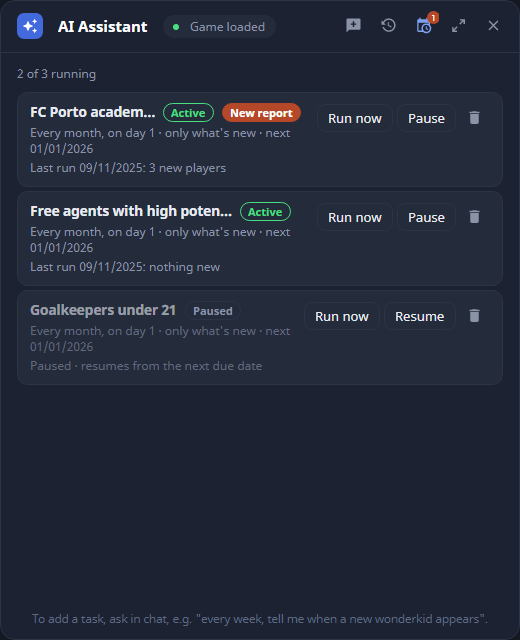
| Status | Meaning |
|---|---|
| Active | The task runs on its schedule. |
| Paused | The task is on hold and resumes from its next due date. |
| Needs attention | The last run failed. The row says why, and the next due date tries again. |
| Finished | A task with a Once schedule has run. |
On each row:
| Control | What it does |
|---|---|
| The task name | Opens the task's thread. |
| Pause / Resume | Puts the task on hold or restarts it. |
| Run now | Runs the task once immediately. Its next scheduled run stays the same. |
| Delete task | Asks Delete this task and its past reports? Select Delete to confirm or Keep to cancel. |
There is no form for adding a task. To add or change one, ask in the chat.
Read a report
When a run finds something, FMRTE adds a report to the task's thread. Open the task from the list to read it. Each run has its own heading, such as Run on 02/11/2025 (in-game), with the date in your regional format, followed by the players it found and why they are new. Use Back to Tasks to return to the list.
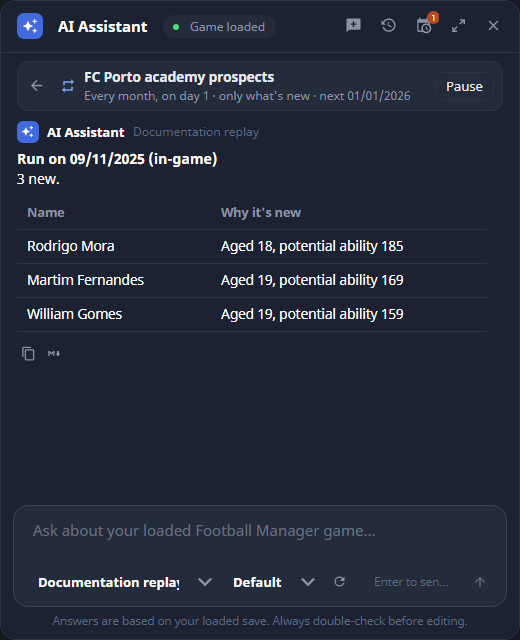
You can ask follow-up questions in the thread, such as who to look at first. A run that finds nothing new shows nothing new as its last run on the Tasks list and does not send a notification.
Notifications
When a run reports something, the report always goes into the task's thread. FMRTE also tells you, depending on what you are doing:
- With FMRTE in front and the assistant panel closed, a toast appears with Open report and Dismiss. With the panel open, you see the report arrive instead.
- With another window in front, a desktop notification appears. Open report brings FMRTE forward on that task. If desktop notifications are off or not supported, FMRTE keeps a toast waiting for when you return.
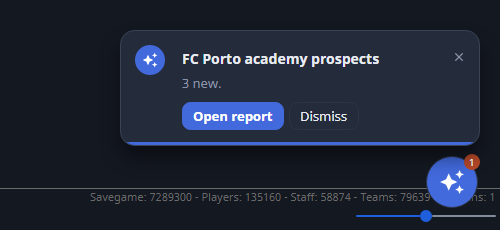
The number on the assistant button counts reports you have not opened. To stop desktop notifications, turn off Show desktop notifications for recurring tasks in Settings → Tools → AI Assistant. Toasts and thread reports stay on.
When tasks run
FMRTE checks tasks while it is attached to the save the task belongs to. A task runs when the in-game date reaches its due date and the game is not moving days, for example when it is paused. If several due dates passed while FMRTE was closed or detached, the task runs once and then waits for its next date after today.
A task does not run when:
- Football Manager or FMRTE is closed.
- A different save is loaded. Each save shows only its own tasks.
- The provider profile it uses has been removed. The task then shows Needs attention.
Runs use your configured provider, so they send data to it like any other message. See What is sent to the provider.
If the Tasks list says tasks are not available, FMRTE cannot read the save's id, and the assistant does not offer a task card for that save.
Apply a preset automatically
A task can also apply an existing preset on a schedule, for example every 30 days. This kind of task changes your save each time it runs, without asking.
The assistant only proposes it. The card is titled Automatic preset and says which preset it applies and to how many records. It warns This task changes your save every time it runs, without asking. Select the count to see the target list, then select Create task to confirm once.
Each run applies the preset through FMRTE's preset manager, so it is one entry in Edit History. A run stops and writes nothing when:
- More than 500 records match.
- The preset changed since you confirmed it, or no longer exists or cannot be applied automatically.
- The matches grew far beyond the count you confirmed. The row then offers Apply to N and continue or Review and confirm.
- A different save is loaded or FMRTE cannot write to the game.
Check the run's report before you resume a task that stopped on an uncertain write.