Open in
AI Assistant chat panel
The chat panel is where you talk to the AI Assistant. Open it with the assistant button in the toolbar. Drag the button to move it. A dot on the button means the assistant is working, and a number shows how many proposals or task reports wait for you.
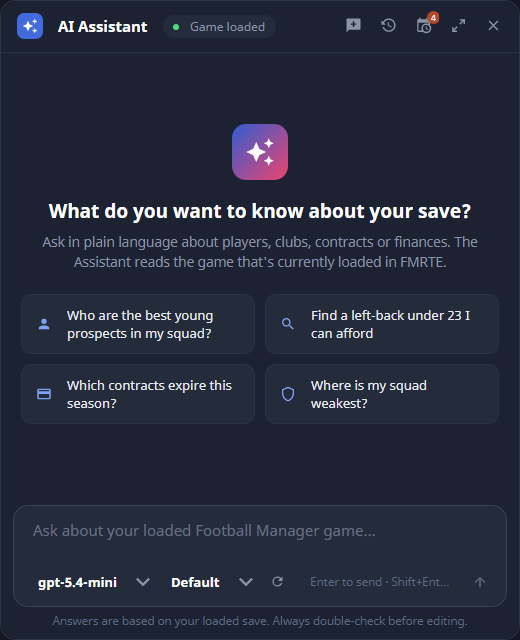
Header
| Control | What it does |
|---|---|
| Game loaded / No game loaded | Shows whether the assistant can see a save. Hover it to see the provider and model. |
| Pending count | Appears when proposals wait for your review. Select it (Open pending review) to open the latest one in the full review tab. |
| New chat | Starts a new conversation. Earlier ones stay in History. |
| Tasks | Shows your recurring tasks in place of the chat. Select Tasks again to go back. |
| History | Shows your saved conversations in place of the chat. Select History again to go back. |
| Expand panel | Fills the FMRTE window with the panel. Select Restore panel size to go back to your previous size. |
| Close assistant | Hides the panel. Esc does the same. |
Drag the header to move the panel. Drag any edge or corner to resize it. You can also focus the top-left corner and use the arrow keys.
Start a conversation
When the chat is empty, it shows four starter prompts:
- Who are the best young prospects in my squad?
- Find a left-back under 23 I can afford
- Which contracts expire this season?
- Where is my squad weakest?
Select one to send it. If no save is loaded, the prompt goes into the text box instead, and the panel reminds you to press Load Game first.
Composer
| Control | What it does |
|---|---|
| Text box | Type your question. Enter sends. Shift+Enter starts a new line. |
| Attach files | Adds files to your next message, up to eight. Which files work depends on the selected model. Remove attachment takes one off again. |
| Model | Picks the model for the next message. Models that can't be used are greyed out. Hover one to see why. |
| Reasoning | Picks how much the model thinks before answering, from None to Maximum, or Default. The levels shown depend on the model. |
| Use model default | Appears when the reasoning level you chose doesn't work with the selected model. Select it to go back to the model's default. |
| Refresh available models | Asks each configured provider for its current model list. |
| Send message / Stop AI Agent | Sends your message. While the assistant works, the same button stops it. |
| Open Settings | Appears when the selected provider has no API key. Opens Settings so you can add one. |
One message can use at most eight rounds of lookups. If the assistant reaches the limit, send another message to continue.
If your provider declines a request, the chat shows The provider declined this request.
Work with messages
- Below each of your messages, select Copy text or Ask this again.
- Below each answer, select Copy text or Copy Markdown.
- Use Jump to latest to scroll back to the newest message.
- Use Load earlier messages to see older parts of a long conversation.
History
In History:
- Select a conversation to open it.
- Select JSON or MD on a conversation to export it (Export this conversation as JSON or Export this conversation as Markdown). FMRTE asks where to save the file.
- Select × on a conversation to delete it.
- New starts a new conversation.
- Clear history deletes all saved conversations and their attachments at once. It doesn't ask for confirmation.
Exported conversations can contain save data and lookup results. Check them before you share them.