Open in
Review and approve AI edits
Ask the AI Assistant to propose Determination = 18 for two players, then use the review tab to approve only one player's change. The other player's value should remain unchanged.
Before you start
You need a loaded savegame, an activated license for applying edits, and a configured AI Assistant.
Remote providers require your own provider API key. A local tool-calling model on a loopback endpoint, such as Ollama or LM Studio, can run without a key.
This example uses Diogo Costa and Thiago Silva at FC Porto. Substitute two players in your save if needed. Note both players' current Determination values before starting. Choose players whose values differ from 18 so the result is easy to check.
Request a proposal in chat
-
Open the AI Assistant panel and choose your provider and model.
-
Send this request:
Find Diogo Costa and Thiago Silva at FC Porto. Propose setting Determination to 18 for both. Do not apply anything.
-
Check that the proposal identifies the two intended players and Determination = 18. If it targets someone else or changes another field, select Reject and clarify your request.
-
Select Open full review on the proposal card.
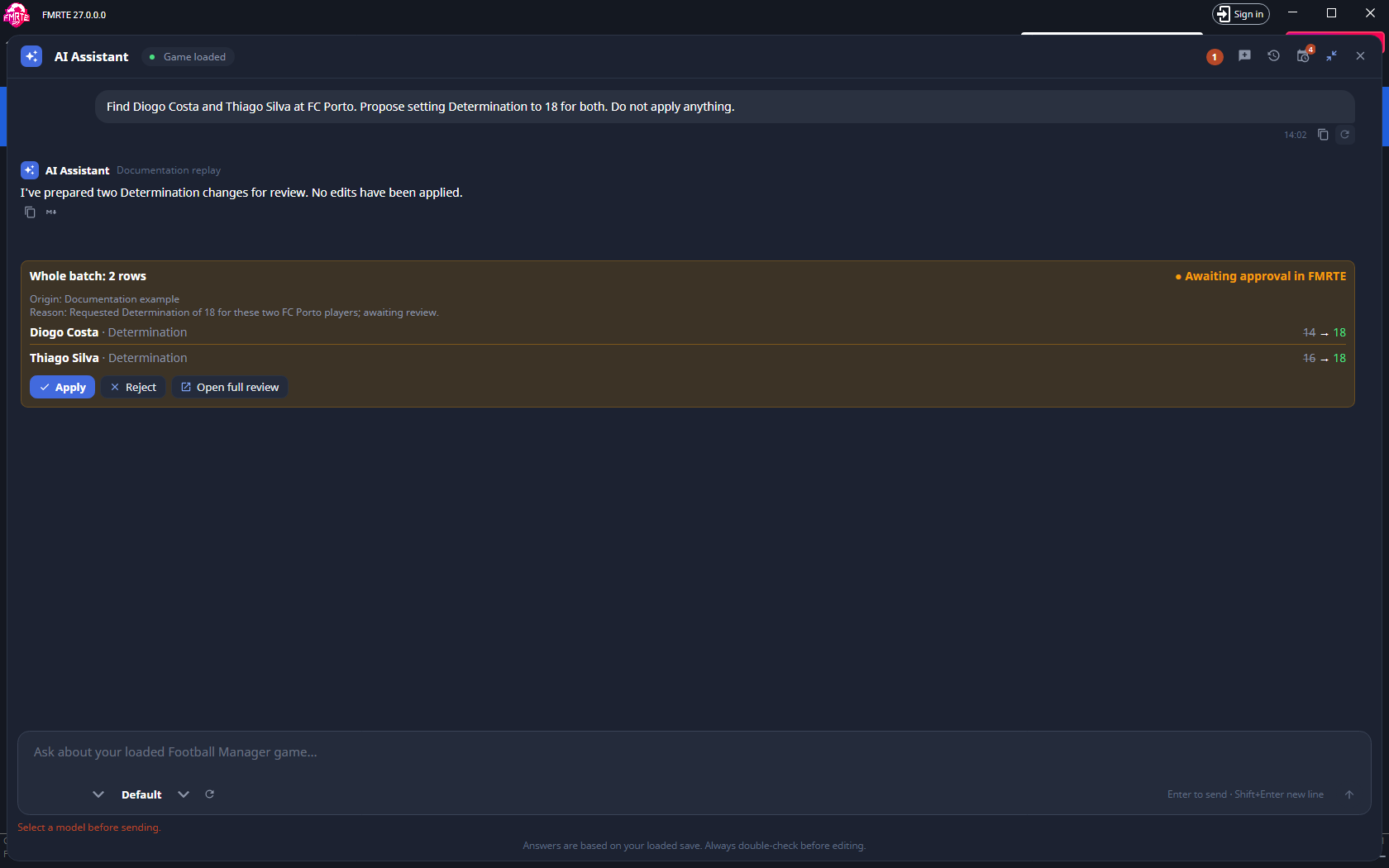
The screenshot uses scripted example conversation text and a real pending proposal prepared from the capture save. No edits are applied during screenshot generation. Your provider's reply can differ.
Apply in the chat approves the proposal's ready operations. For this example, use Open full review to choose just one player's change.
Choose one change in the review tab
The Review changes tab opens in the main FMRTE workspace, with the chat folded away. It shows the proposal's target records, original and proposed values, reason and validation state.
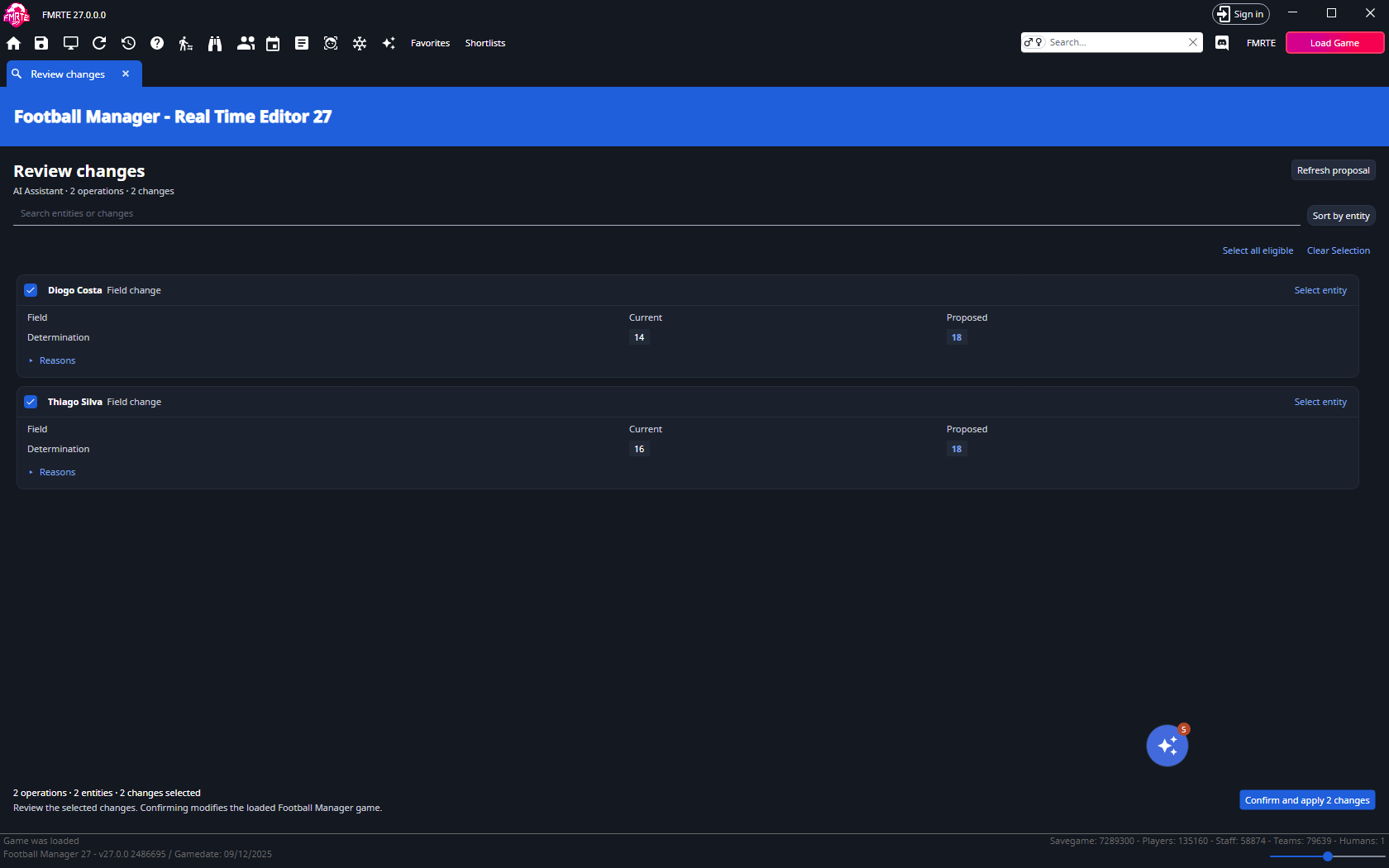
- Check both player names and compare their original values with the values you noted.
- Select Clear selection.
- Tick only the Determination operation for Diogo Costa. Leave Thiago Silva unselected.
- Check that the summary shows 1 operations · 1 entities · 1 changes selected and the button reads Confirm and apply 1 changes. If you use Search entities or changes, remember that hidden operations retain their selection, so check the count before confirming.
- Select Confirm and apply 1 changes when you are satisfied with the selection.
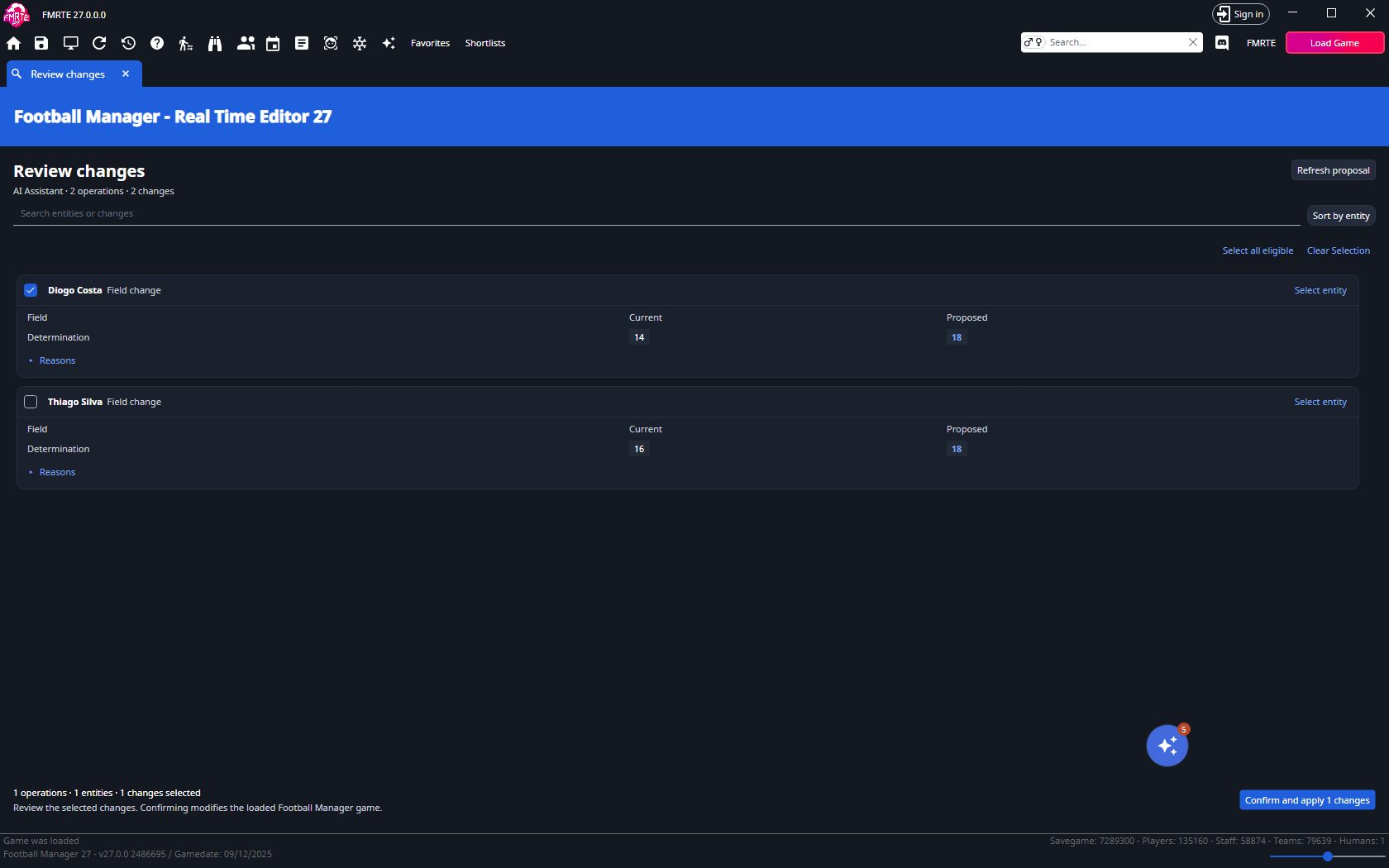
Opening the tab and selecting checkboxes prepare your approval. The confirmation button applies the selected change.
Check the result
- Read Application results in the review tab. Confirm that the selected change was applied. Do not treat a failed, unknown or not-attempted result as success.
- Open Diogo Costa's attributes in FMRTE and check Determination = 18.
- Open Thiago Silva's attributes and check that the Determination still matches the value you noted before the proposal.
- Check the corresponding values in Football Manager. Save in Football Manager if you want to keep the approved edit in your save file.
The screenshots demonstrate pending review and selection. Application and the resulting game values have not been verified for this example, so check the results in your own session.
If the proposal cannot be applied
- Wrong player or field: reject the proposal and request the change again with clearer names and club details.
- No selected changes: select an eligible operation and check the confirmation count.
- Expired or stale proposal: select Refresh proposal, then review the new values and selection again. Proposals expire after ten minutes or when the save unloads.
- A change failed or application stopped: read the per-change results before requesting another proposal. An attempted proposal needs to be prepared again before retrying.
See Set up a provider and Edit proposals for provider setup and proposal controls, and Edit History for recorded writes and eligible undo actions.