Open in
Load your game on a Mac
FMRTE now reads Football Manager through a small plugin that the game loads when it starts, so System Integrity Protection (SIP) can stay on.
The Set up the FMRTE plugin wizard prepares your copy of the game to load the plugin. You only need to do this once for each copy of the game.
Open the wizard
Start Football Manager, then select Load Game in FMRTE. If FMRTE can't connect, the wizard opens by itself. Select Next >.
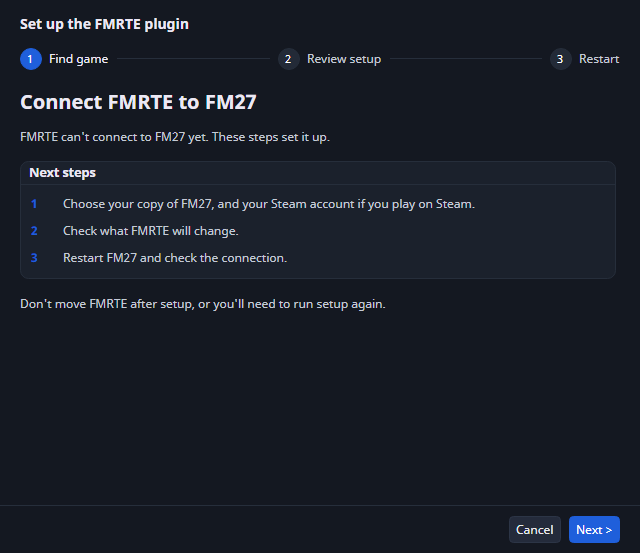
If the wizard doesn't open, set Settings → Support → Diagnostics → Game data source to Auto detect (the default). With Game process, FMRTE never uses the plugin.
Step 1: Find game
- Under Games found, choose your copy of the game. FMRTE selects the running copy for you.
- If you play on Steam, choose your Steam account.
- Select Next >.
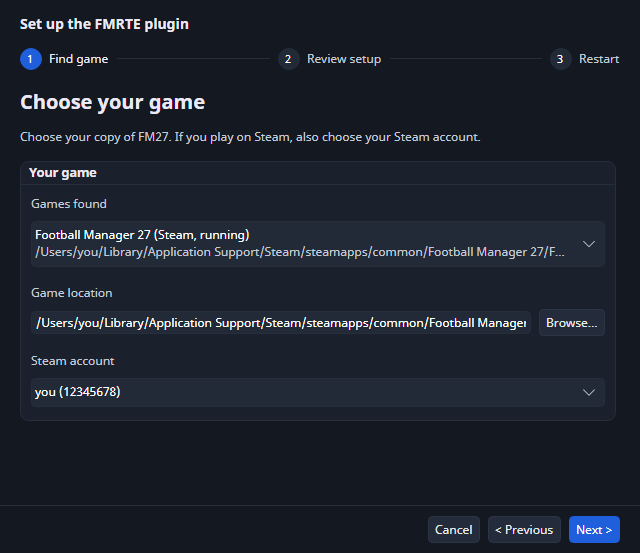
If your copy isn't listed, select Browse… and choose the game's folder.
Steam on an Apple silicon Mac: Install Rosetta
Steam needs Apple's Rosetta to start the game with the plugin. If it's missing, the wizard shows Install Rosetta before the review. Select Install Rosetta (internet needed, about a minute). Or run the command shown in Terminal, then select Check again.
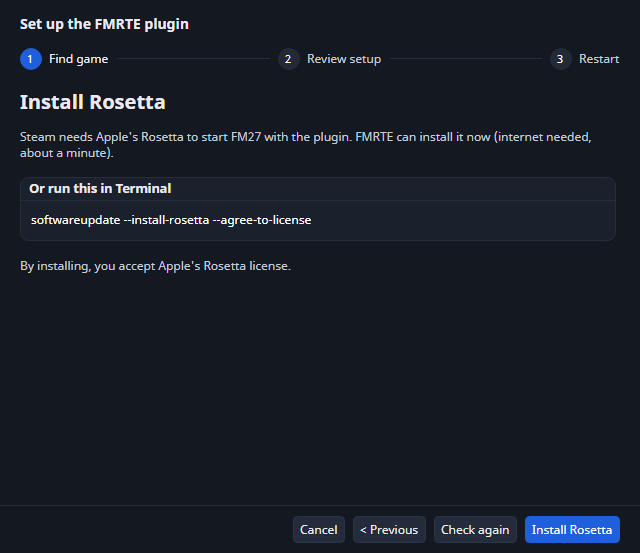
Rosetta is only for Steam: Steam uses it to run FMRTE's small launcher. The game itself still runs natively on Apple silicon, not through Rosetta. Heroic and the Desktop shortcut don't need Rosetta.
Step 2: Review setup
Check What FMRTE will change, then select Apply setup. What you see depends on where your copy came from:
- Steam
- Heroic (Epic)
- App Store or other
- Epic Games Store
Quit Football Manager and Steam first, then select Apply setup.
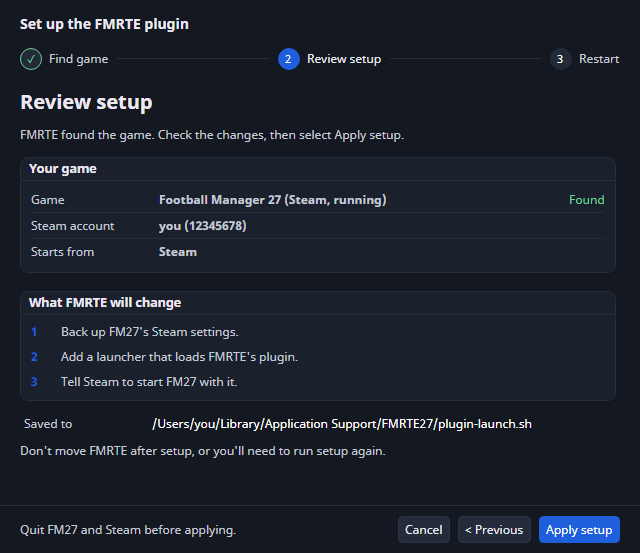
- If the game already has Steam launch options, tick Replace the current Steam launch options to continue.
- If FMRTE can't change Steam's settings itself, it shows a Launch options line. Paste it into the game's Properties › General › Launch Options in Steam, then select I've set it in Steam.
If you use BepInEx mods: FMRTE adds its plugin to BepInEx's start script instead, and keeps your mods and Steam settings. You don't need to quit Steam.
Quit Heroic first, then select Apply setup.
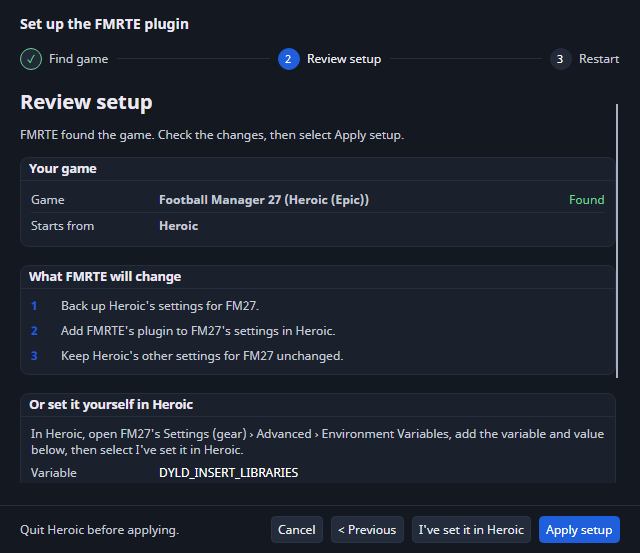
To do it by hand instead: in Heroic, open the game's Settings (gear) › Advanced › Environment Variables, add DYLD_INSERT_LIBRARIES with the Value the page shows, then select I've set it in Heroic.
Keep FMRTE in Applications on your Mac's own disk: Heroic can't load the plugin from a disk image or another drive.
Select Apply setup. FMRTE creates a shortcut app on your Desktop, named after the game with "with FMRTE" added, and leaves the game unchanged.
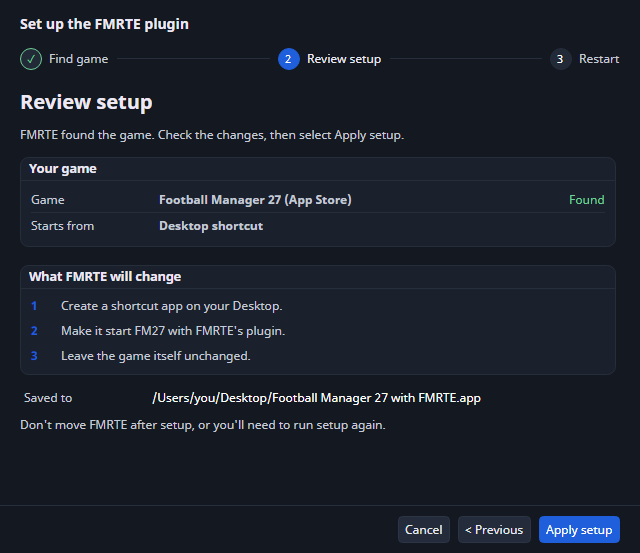
If macOS asks, let FMRTE use your Desktop.
Not supported: FMRTE can't use the Epic Games Launcher. Install the game with Heroic Games Launcher, which uses your Epic account, and choose that copy in Step 1.
Before FMRTE changes a file, it saves a copy of the original next to it, ending in .fmrte-backup.
Step 3: Restart
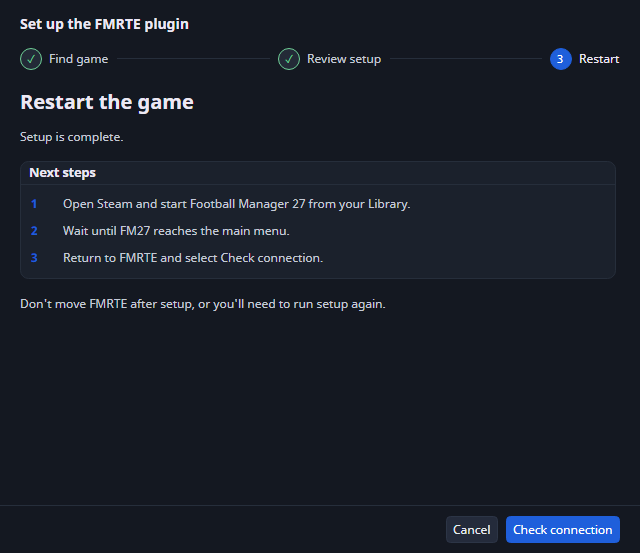
- Quit the game and start it again the new way:
- Steam
- Heroic (Epic)
- App Store or other
From your Steam Library.With Play in Heroic.From the FMRTE shortcut on your Desktop. - Wait until the game reaches the main menu.
- Select Check connection.
When the wizard shows The plugin is connected, select Finish, then Load Game. The status bar shows (Plugin) after the game version.
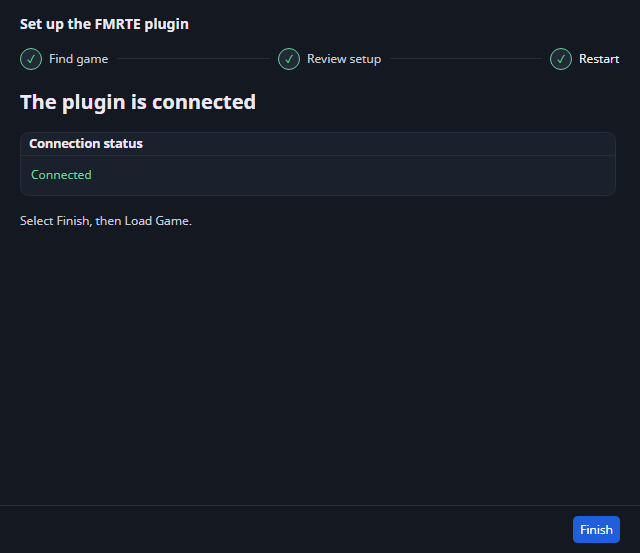
If it says Not connected yet, make sure you started the game the new way, then select Check connection again.
If setup stops
The message at the bottom of the wizard says what to do. The most common ones:
| Message | What to do |
|---|---|
| macOS won't let FMRTE connect to this copy | Choose another copy, such as the Steam version, or select Use FMRTE without the plugin. That guide changes SIP: read “Unable to open process” on macOS first. |
| FMRTE can't use the Epic launcher | Install the game with Heroic Games Launcher and choose that copy. |
| No Steam account with the game found | Start the game from Steam once, then try again. |
| FMRTE can't be set up from its current folder | Move FMRTE to Applications and try again. |
| Setup didn't finish | Try again. If it keeps failing, submit a bug report. |
When you report a connection problem, attach plugin.log from FMRTE's log folder (Settings → Support → Diagnostics → Log folder → Open folder).
Update the plugin
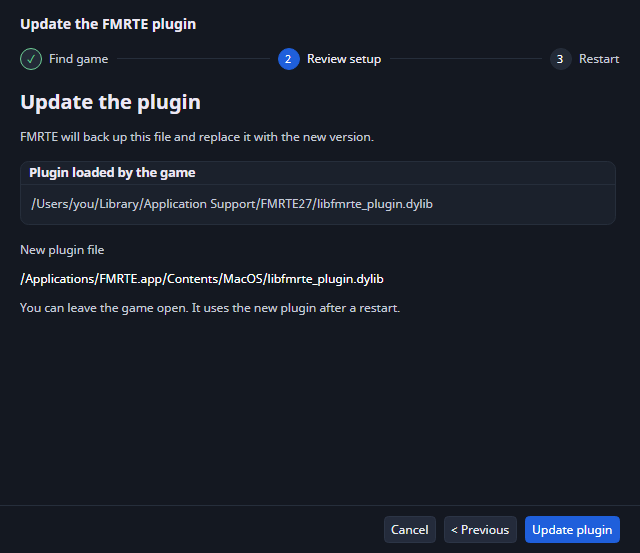
After you update FMRTE, the game may still run the old plugin. The wizard then opens as Update the FMRTE plugin. Select Next >. If the Update the plugin page appears, select Update plugin. Then restart the game and select Check connection.
Undo the setup
The wizard has no undo button. To stop the game loading the plugin:
- Steam
- Heroic (Epic)
- App Store or other
In Steam, open the game's Properties › General › Launch Options and remove FMRTE's launcher line. With BepInEx, replace run_bepinex_arm64.sh in the game's folder with its .fmrte-backup copy.
In the game's Settings › Advanced › Environment Variables in Heroic, delete DYLD_INSERT_LIBRARIES.
If you move or remove FMRTE, delete this variable too, or the game won't start from Heroic.
Move the shortcut to the Bin, and start the game the usual way.