Open in
Installing FMF files
Install pregame editor .fmf files before starting a new savegame.
1. Check the download
Extract compressed downloads, such as .zip, .rar or .7z archives, before continuing. If your file already ends in .fmf, skip extraction.
2. Copy the .fmf file
The file-placement steps below cover Windows and macOS. Steam Deck file placement has not yet been verified for this guide.
- Windows
- macOS
- In File Explorer, open Documents → Sports Interactive.
- Open the folder for your Football Manager edition.
- Open editor data, creating it if missing.
- Copy your
.fmffiles into that folder.
-
In Finder, choose Go → Go to Folder and enter:
~/Library/Application Support/Sports Interactive/ -
Open the folder for your Football Manager edition.
-
Open editor data, creating it if missing.
-
Move your
.fmffiles into that folder.
3. Select the file for a new save
-
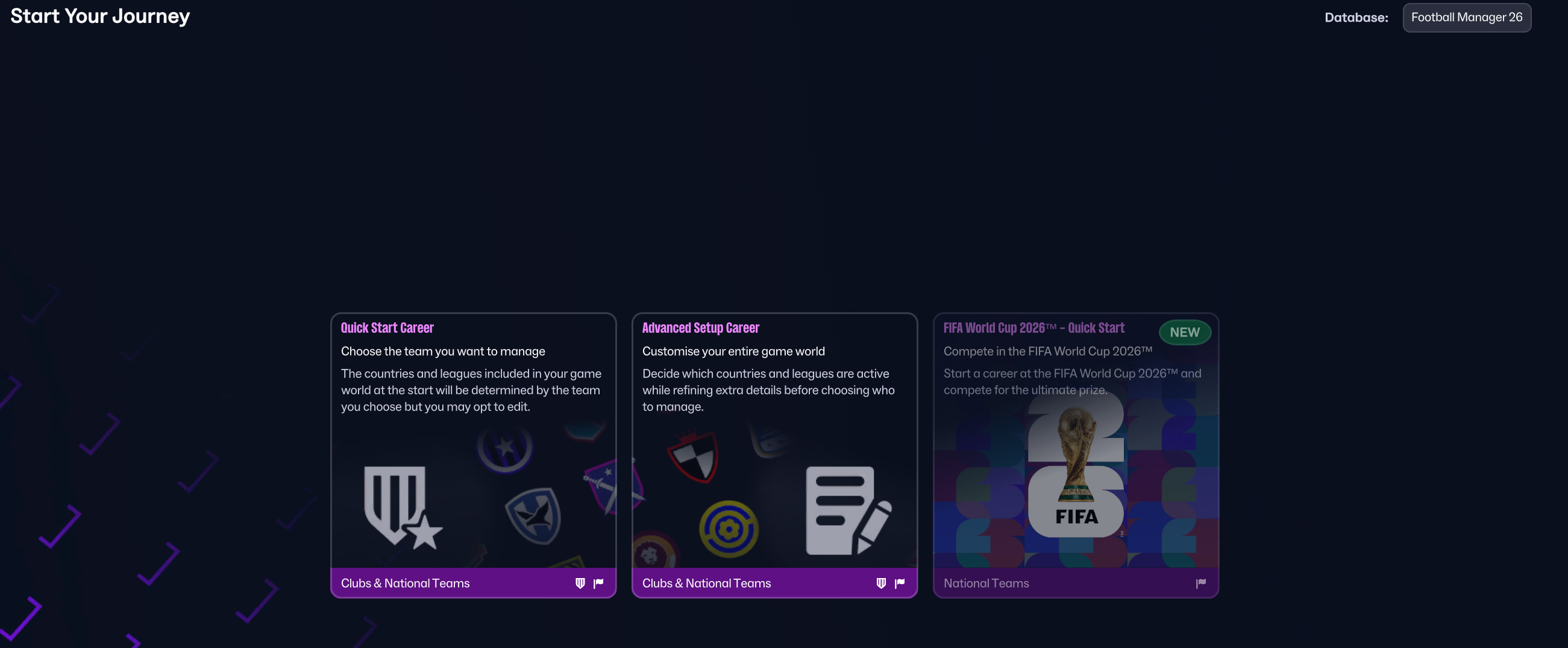
Start a new save in Football Manager.
-
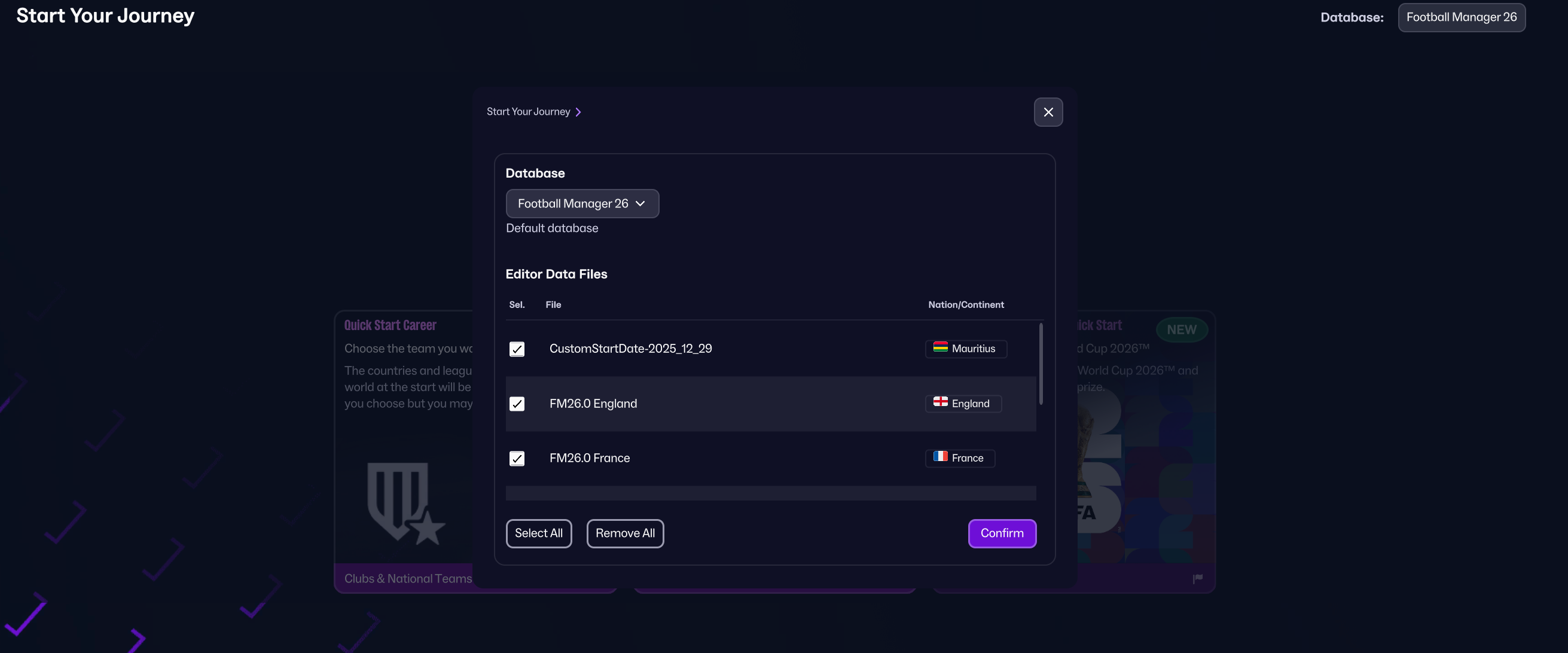
Open Database in the top-right corner to display Editor Data Files.
-
Tick the files you want to use.
If the file does not appear
If the files are missing from the selection window, check that you placed them in the correct editor data folder.
The file appears but fails database verification
Check the download page for compatibility with the database version selected for your new save. A game update can require the file's author to provide an updated version, moving the file to another folder does not resolve a verification error.
If compatibility is unclear or verification still fails, contact the file's author with the exact .fmf filename, download link, selected database version and full error. For real fixtures or custom start dates, check the relevant download's update notes before starting the save.